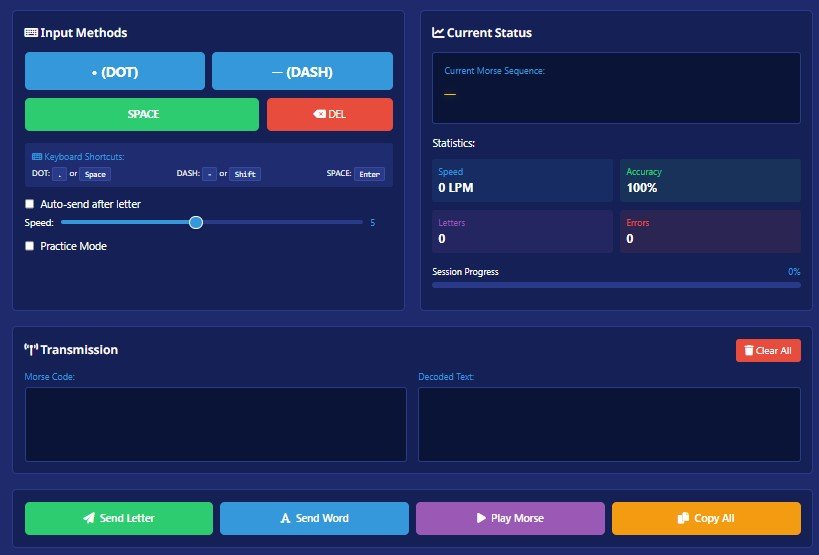
The Morse Machine is an advanced, interactive Morse code tool that allows users to translate text into Morse code, decode Morse signals back into text, and practice Morse code using real-time audio and visual feedback. Designed for both beginners and advanced users, this tool combines translation, learning, and training features in one powerful interface.
Unlike basic Morse code converters, this Morse Machine focuses on accuracy, timing, practice, and performance tracking, making it ideal for anyone who wants to truly understand and master Morse code.
A Morse Machine is a digital system that converts characters into dots (·) and dashes (–) following International Morse Code standards. It also decodes Morse code back into readable text by analyzing timing and spacing between signals.
This Morse Machine works as:
By combining visual signals, audio tones, and live statistics, it helps users build real Morse code skills instead of just copying symbols.
The Morse Machine processes user input instantly and converts it into accurate Morse signals.
This two-way functionality allows users to encode and decode Morse code, which is essential for learning and practice.
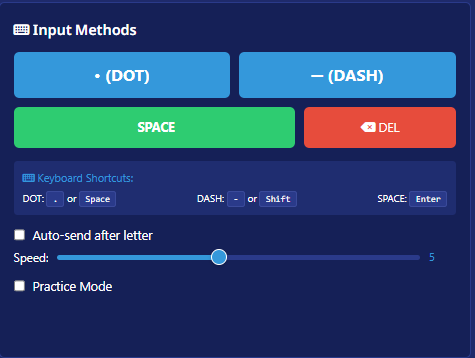
The Morse Machine offers multiple input methods to support different learning styles.
This button manually inputs a dot, which represents a short Morse signal. It is mainly used for:
This button inputs a dash, which represents a longer Morse signal (three units long). It helps users understand the difference between dots and dashes through timing and rhythm.
The Space button inserts a pause between Morse characters. This pause is essential because Morse code depends heavily on spacing to distinguish letters and words.
The Clear button removes the current Morse input and decoded output without affecting settings. It allows users to start a fresh translation instantly.
Users can type plain English text directly into the input field. The Morse Machine instantly converts each character into Morse code, making it ideal for:
When enabled, this feature automatically sends a Morse character after a short pause. This means users do not need to manually press “Send Letter” each time.
Benefits:
Practice Mode changes how the Morse Machine behaves for learning purposes.
When Practice Mode is ON:
This mode is designed to improve listening and recognition skills.
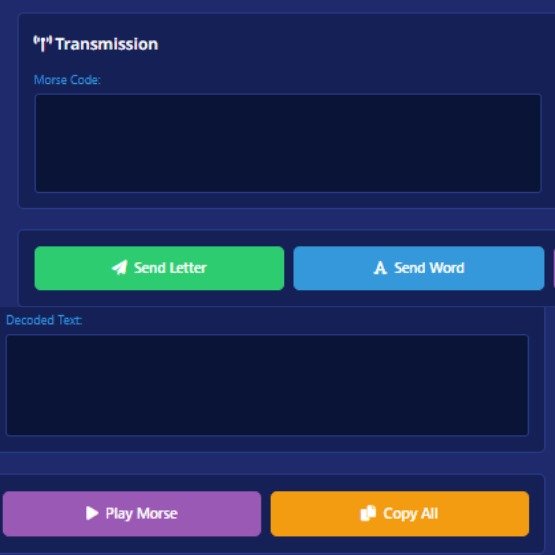
The translation area shows both encoded and decoded results in real time.
This panel displays the generated dots and dashes visually, with correct spacing between signals, letters, and words.
This panel shows the readable text version of the Morse code, helping users verify accuracy and understand mistakes.
Sends one Morse character at a time. This is useful for:
Sends a complete word with proper Morse spacing. This helps users practice real-word transmission and rhythm.
Plays the Morse code as audio tones, allowing users to learn Morse through sound — the most common real-world use of Morse code.
Copies the entire Morse or decoded output to the clipboard for reuse, sharing, or documentation.
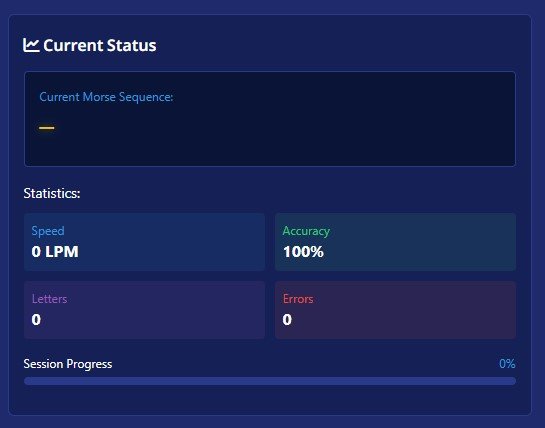
The Current Status panel acts as a live signal monitor.
Displays the active Morse signals being generated or played. This helps users visually track dot and dash flow in real time.
WPM shows the speed at which Morse code is being transmitted. It is calculated based on standard Morse timing rules and helps users track learning progress.
This metric shows how accurately the user inputs or decodes Morse code. It compares correct signals against total attempts.
Displays the number of incorrect inputs or misdecoded signals during a session.
Tracks how much of the current practice or translation session has been completed, helping users stay focused and consistent.
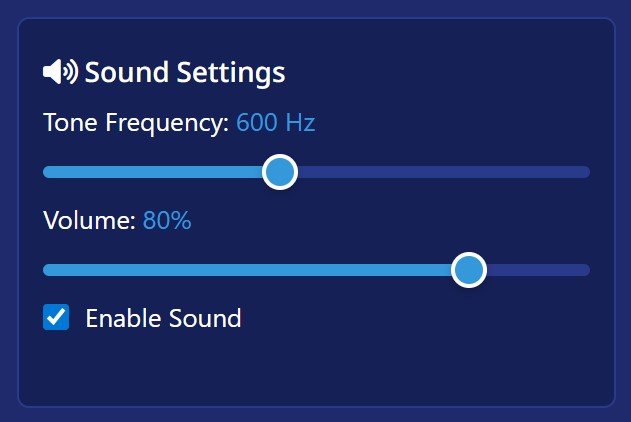
Sound settings control how Morse tones are played.
Disabling sound is useful for silent visual practice.
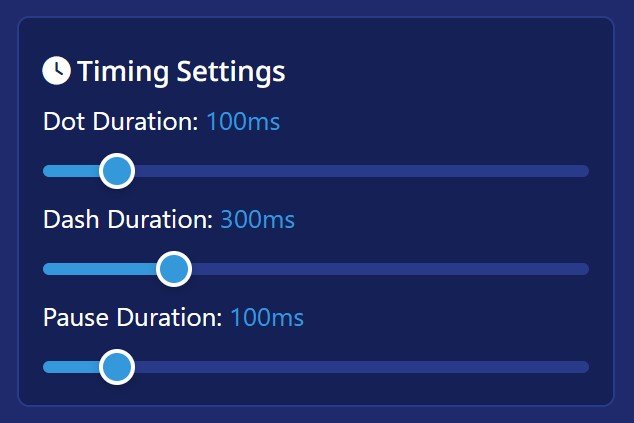
Timing defines Morse accuracy.
Users can adjust:
These controls allow beginners to slow down and advanced users to increase speed.
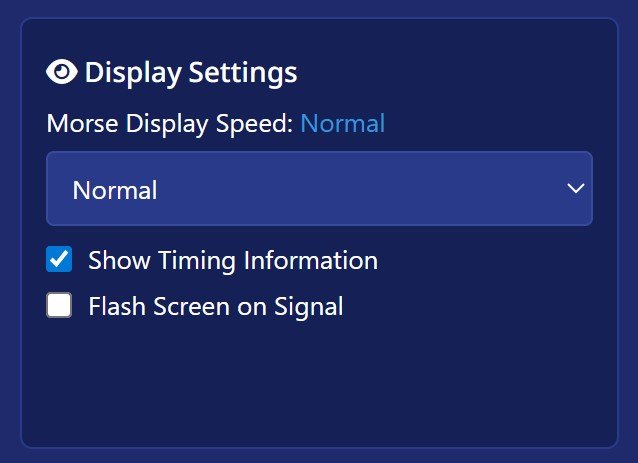
Display settings enhance visual learning.
Options include:
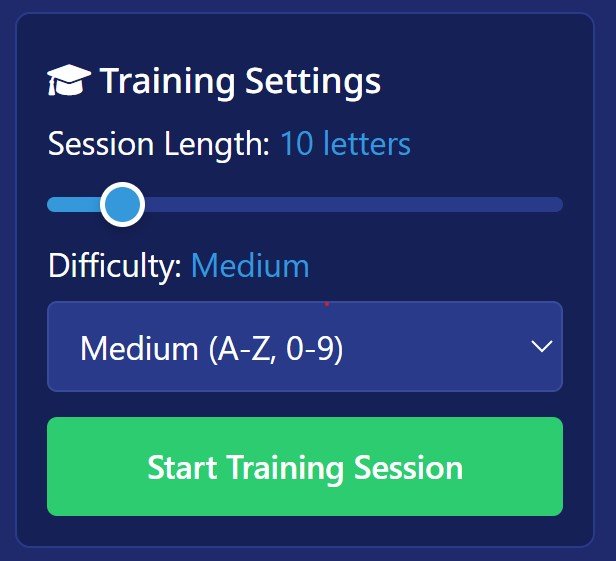
Training settings convert the Morse Machine into a full practice system.
Users can choose:
Begins a structured practice session using random letters or words based on the selected difficulty.
This tool is ideal for:
Enhance your learning experience by exploring additional tools available on InMorseCode, including:
Internal tools work together to build a complete Morse code learning ecosystem.
Find answers to common questions about Morse code and how to use our Advanced Morse Code Machine effectively
Yes, it is completely free to use online.
Yes. Training mode, adjustable speed, and audio learning make it beginner-friendly.
Yes. You can decode Morse signals into readable text instantly.
Yes. It follows International Morse Code timing standards.
This Morse Machine is not just a translator—it is a complete Morse code learning, simulation, and practice environment. Every button, setting, and metric is designed to help users understand Morse code deeply through real-time interaction.
By combining translation, sound, visuals, customization, and training, this tool provides everything needed to learn, practice, and master Morse code effectively.