
Upload any TXT, DOC, DOCX, PDF, or RTF file and convert its full text content to International Morse code in one click. Play CW audio, adjust speed and pitch, share your message — no signup, no download.
or click to browse
Supports: TXT, DOC, DOCX, PDF, RTF (max 5MB)
The Text File to Morse Code Converter is a free, browser-based tool on InMorseCode.com that takes any document — TXT, DOC, DOCX, PDF, or RTF — and converts its full text content into International Morse code dots and dashes in a single click. No other free online tool lets you upload five document formats and get complete Morse code output with audio playback in one seamless step.
Unlike basic Morse translators that only accept manual typing, this tool handles entire documents at once. Upload a prepared message, a training script, a vocabulary list, or any text-based file and let the tool do the work. The Morse Code Player then lets you hear the result as authentic CW (Continuous Wave) radio tones — the same beep pattern used by ham radio operators and telegraph operators worldwide.
Everything runs locally in your browser. No file is sent to any server. No text is stored. Your content stays private from upload to playback.
The tool supports the complete ITU International Morse code standard (ITU-R M.1677-1), covering all 26 letters (A–Z), all 10 digits (0–9), and common punctuation marks. Every character in your uploaded document that has a Morse equivalent is converted accurately with no errors or approximations.
The Morse Code Player gives you full control over the audio experience: play, pause, stop, repeat, toggle sound or light or vibrate output, adjust speed in Words Per Minute (WPM), adjust the tone pitch in Hertz (Hz), and set the volume — then share your result with a single link using the Share button.
Unique capability: Supporting TXT, DOC, DOCX, PDF, and RTF in a single Morse converter makes this the most versatile free document-to-Morse tool available — no conversion step needed before uploading.
Every Feature Explained
A plain-English walkthrough of every panel, button, and slider — based exactly on the tool interface. No technical knowledge needed.
Drag any supported file from your computer and drop it directly onto the dashed upload zone. The upload begins automatically the moment you release the file. No extra clicks needed.
Drag any supported file from your computer and drop it directly onto the dashed upload zone. The upload begins automatically the moment you release the file. No extra clicks needed.
Supported file formats: The tool accepts five document types in a single upload — each covering the most common text document formats in everyday use:
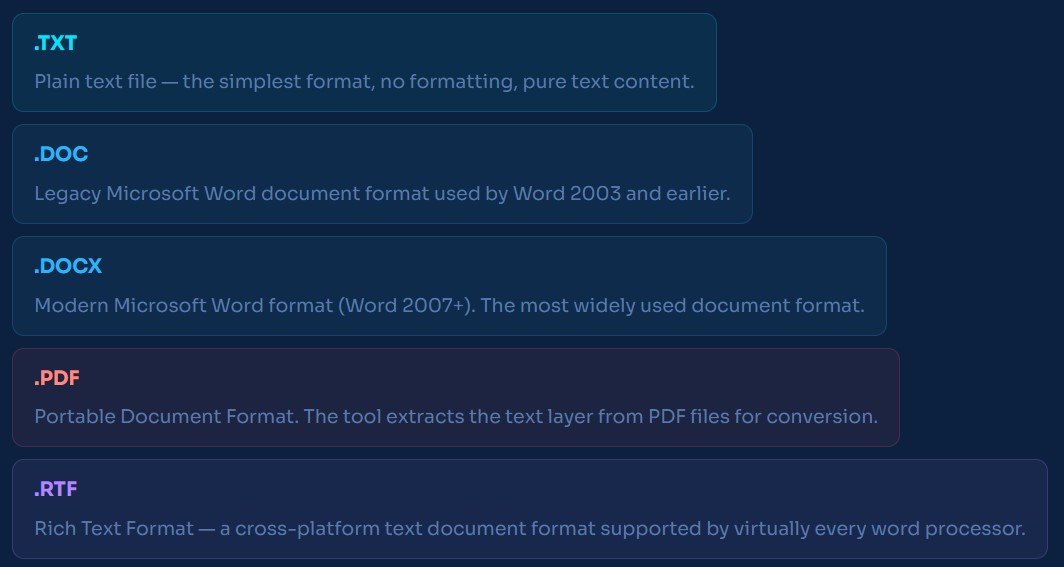
File size limit: Up to 5MB per upload. This covers the vast majority of everyday documents — a 5MB TXT file holds roughly 5 million characters, and a typical DOCX or PDF of several hundred pages is well under this limit.
After conversion, the Morse Code Player panel activates. It contains two rows of controls — the playback and output buttons, followed by the share button — that give you complete control over how you hear and share your Morse code.
Starts CW audio playback of your converted Morse code from the beginning. Each dot plays as a short beep, each dash as a longer beep, with correct ITU timing between elements, letters, and words. This is authentic Morse code sound exactly as heard on real radio.
Pauses audio playback mid-message. Press Play Morse again to resume from exactly where it stopped — useful for following along with a reference chart or checking individual characters as they play.
Stops playback completely and resets to the beginning of the message. Use Stop when you want to restart from the very first character rather than resuming from a pause point.
Toggles audio tone output on or off. When Sound is active, every Play action produces CW beep tones through your device speakers. Turn Sound off to switch to silent visual-only mode using the Light button instead.
Flashes your screen in the Morse dot-dash timing of the converted message. A short flash = dot, a long flash = dash. Use for visual Morse demonstrations, accessibility learning, or understanding CW timing without audio.
Pulses your mobile device’s haptic motor with the Morse timing pattern — feel each dot and dash as a vibration. Ideal for hearing-impaired users, silent environments, or tactile Morse code learning on smartphones and tablets.
Generates a unique shareable link that encodes your converted Morse message and all current player settings (speed, pitch, volume). Anyone who opens the link hears and sees exactly what you configured — no account required. Share via message, email, or any platform.
The Player Settings section sits below the playback buttons. It contains three horizontal sliders that let you customise the audio output before playing or sharing.
Controls how fast the Morse code plays. The default is 20 WPM — standard amateur radio and ham radio operating speed. Use 5–10 WPM when learning to recognise letter patterns by ear, as this lets you hear each dit and dah distinctly without rushing. Use 25–35+ WPM for experienced CW operators practising at contest speeds. The ITU PARIS standard defines one word as 50 time units — at 20 WPM, one word takes exactly 3 seconds.
Sets the frequency of the CW audio tones in Hertz. The default 600 Hz is in the comfortable mid-range for most listeners. Lower values (400–500 Hz) produce a deeper tone; higher values (700–900 Hz) produce a sharper, more piercing beep. Most amateur radio operators prefer 550–700 Hz for comfortable extended listening sessions and ear-training practice.
Adjusts playback loudness independently of your device’s system volume. The default is 80%. Raise this for noisy environments; lower it for quiet offices or late-night practice. The volume setting also applies when you use the Share button — recipients hear the audio at the level you configured.
Quickest workflow: Drop your file onto the upload zone (or click Browse Files) → click Convert to Morse Code → press Play Morse to hear the audio. Adjust Speed and Pitch in Player Settings. Click Share to send the result with one link.
This is the only free Morse code converter that accepts five different document formats in a single upload tool. Here is what each format is and when to use it.
The simplest format — pure text with no formatting, fonts, or images. Created by any text editor (Notepad, TextEdit, VS Code). Best choice for Morse conversion because the text content is entirely unambiguous. All characters are converted with zero extraction errors.
The world’s most widely used document formats. DOC is the legacy Word format (pre-2007); DOCX is the modern Open XML format used by Word 2007 and all later versions. Upload directly — no need to export to TXT first. The tool extracts the text layer for conversion.
The universal sharing format developed by Adobe, used for books, reports, manuals, and official documents. The tool extracts the text layer from PDF files. Best results with text-based PDFs — scanned image PDFs require OCR processing before upload.
Developed by Microsoft in the 1980s, RTF is a cross-platform text format supported by virtually every word processor — Word, LibreOffice, Google Docs, TextEdit, and WordPad. Commonly used for email attachments and cross-platform document sharing. Upload RTF files directly for instant Morse conversion.
Pro tip: If your document is in a format not listed (e.g. Google Docs, ODT, PAGES), open it in your word processor and use File → Save As → Plain Text (.txt) to create a compatible file for upload. TXT files always produce the cleanest Morse conversion results.
Anyone who needs to convert a full document — not just a typed phrase — to Morse code with audio playback.
Ham radio CW operators use this tool to pre-encode prepared messages and training scripts. Upload a .TXT message file, set your target WPM in Player Settings, and use Repeat to practise until the patterns are fluent. Essential for CW contest preparation and amateur radio licence exam practice.
Everything you need to know about uploading files and using the Morse Code Player.
Step 1 — Drag your TXT, DOC, DOCX, PDF, or RTF file onto the upload zone, or click Browse Files and select it.
Step 2 — Click the ↔ Convert to Morse Code button below the upload panel.
Step 3 — Press ▶ Play Morse in the Morse Code Player to hear the audio.
Step 4 — Adjust Speed (WPM), Pitch (Hz), and Volume in Player Settings as needed.
Step 5 — Click Share to generate a shareable link or use the audio controls for practice.
The Repeat button loops the Morse code audio continuously until you press Stop. It is specifically designed for Morse code ear-training — repeating the same passage at a set WPM speed until you can recognise each letter pattern automatically by sound without looking at a chart. It’s one of the most effective tools for learning Morse code.
These are three different output modes for the same Morse code pattern. Sound plays CW audio tones through your speakers. Light flashes your screen in the Morse timing pattern — short flash for dot, long flash for dash — useful for visual learning and accessibility. Vibrate pulses your mobile device’s haptic motor with the Morse pattern — ideal for hearing-impaired users or silent environments. You can use these modes together or separately.
5–10 WPM for beginners learning to recognise letter patterns by ear. 20 WPM is the default and the standard amateur radio operating speed. 25–35+ WPM for experienced CW operators. A useful technique for learners is the Farnsworth method — set character speed at 20 WPM but increase word spacing — so you hear each letter sound at full speed without being rushed between letters.
Yes. All file processing happens entirely in your browser. No file content, text, or data is uploaded to any server or stored anywhere. Your document is read locally on your device and the Morse conversion is performed client-side. Nothing leaves your computer or phone.
Join thousands of students and hobbyists using our Text File to Morse Code Translator to learn and decode.