Universal Binary Code Translator

Text Β· Binary Β· Morse Β· Hex Β· Decimal

The only free online translator that converts between all five formats β€” Text, Binary, Morse Code, Hexadecimal, and Decimal β€” in both directions. Play Morse audio, toggle light and vibrate output, swap input and output, and copy your result in seconds. No signup required.
Unlike basic Morse code converters, this Morse Machine focuses on accuracy, timing, practice, and performance tracking, making it ideal for anyone who wants to truly understand and master Morse code.

INPUT
Input format:
OUTPUT
Output format:

βš™οΈ Settings

(Morse timing)

Ready. Select formats and type.

What Is the Binary Code Translator?

The Binary Code Translator on InMorseCode.com is a free, multi-format conversion tool that goes far beyond a standard binary translator. Most online binary converters handle only one or two format pairs β€” typically text-to-binary or binary-to-text. This tool supports five formats simultaneously: Text, Binary, Morse Code, Hexadecimal, and Decimal β€” and converts between any two of them in either direction, giving you up to 20 unique conversion combinations in a single interface.

You select your input format from the INPUT dropdown and your output format from the OUTPUT dropdown, type or paste your data, and the result appears instantly. Need to go from Binary to Morse Code? Select Binary as input and Morse Code as output. Want Hexadecimal to Decimal? Choose those two formats and convert in one step. The tool handles every combination with full accuracy using standard ASCII character encoding and ITU Morse code.

On top of the conversion engine, the tool includes a complete Morse Code Player β€” Play, Stop, Sound, Light, and Vibrate controls β€” so when your output is Morse code you can immediately hear it as CW audio tones, see it as light flashes, or feel it as vibration pulses on mobile. Full Settings control over Speed (WPM), Pitch (Hz), and Volume make this an all-in-one binary and code translation workstation.

Every conversion uses established international standards. Binary output follows 8-bit ASCII encoding where each character is represented as a byte of eight 0s and 1s. Hexadecimal output uses base-16 notation (digits 0–9 and letters A–F). Decimal output represents each character as its ASCII decimal value (0–127 for standard characters). Morse Code output follows the ITU International Morse code standard (ITU-R M.1677-1) β€” dots for short signals, dashes for long signals, single spaces between letters, slashes between words.

Everything runs locally in your browser. No text is sent to any server. No content is stored. Whether you are converting a short word or a full paragraph, your data stays private throughout the entire conversion process.

What makes it unique:Β No other free tool on InMorseCode.com β€” or most competitor sites β€” combines Text, Binary, Morse Code, Hexadecimal, and Decimal in one bidirectional converterΒ plusΒ full Morse audio playback with CW tones, light flash, and vibrate output.

All 5 Input & Output Formats β€” Explained Simply

Both the Input format and Output format dropdowns in the tool offer all five of these formats. Here is what each one means and when to use it.

Text

Plain readable text β€” letters, numbers, symbols. The natural language format. Enter sentences, words, or any standard characters.

Binary

Base-2 number system using only 0 and 1. Each character = 8 bits (one byte). The foundational language of all computers and digital systems.

Morse Code

ITU International Morse code β€” dots (Β·) and dashes (β€”). Used in amateur radio, maritime, aviation, and emergency communications.

Hexadecimal

Base-16 system using digits 0–9 and letters A–F. Used in programming, HTML colour codes, memory addresses, and hex editors.

Decimal

Base-10 ASCII decimal values (0–127). Represents each character as its standard numeric code β€” A = 65, B = 66, space = 32.

Binary Code Translator - All 5 Input & Output Formats

Complete Tool Guide

How to Use the Binary Code Translator?

Step-by-step plain-English explanation of every panel, button, dropdown, and slider β€” based exactly on the tool interface shown in the screenshots.

β‘  INPUT Panel β€” Enter Your Data & Choose Input Format

The INPUT panel on the left side of the tool is where you enter the data you want to convert. It contains a large text area and two controls:

Input Text Area β€” type or paste your content here. The tool accepts all standard characters. You can enter plain text like SOS, a binary string like 01010011, Morse code like … — …, a hex string like 53 4F 53, or decimal values like 83 79 83 β€” whatever matches your selected input format.

Input Format Dropdown β€” the dropdown below the input text area labelled “Input format:”. Click it to reveal all five options: Text, Morse code, Hexadecimal, Decimal, Binary. Select the format that matches what you are entering. The status bar at the bottom of the tool updates immediately to confirm the active conversion direction.
βœ— Clear Button β€” the blue Clear button in the top-right corner of the INPUT panel erases all text in the input field and resets the tool for a fresh conversion. Use this between conversions when you want to start completely from scratch.

Example input workflow: Set Input format to Text β†’ type HELLO β†’ set Output format to Binary β†’ see 01001000 01100101 01101100 01101100 01101111 appear in the OUTPUT panel instantly.

β‘‘ OUTPUT Panel β€” See Your Converted Result & Choose Output Format

TheΒ OUTPUT panelΒ on the right side shows your converted result in real time. As soon as the tool processes your input, the converted data appears here automatically.

Output Format DropdownΒ β€” labelledΒ “Output format:”Β below the result area. Click it to choose from all five formats:Β Text, Morse code, Hexadecimal, Decimal, Binary. Changing this dropdown instantly re-converts your input to the new output format without requiring any additional action. You can freely switch between all five output formats to compare results side by side.

Copy ButtonΒ β€” the greenΒ CopyΒ button in the top-right corner of the OUTPUT panel copies the entire converted result to your clipboard in one click. Paste it directly into any document, code editor, message, or application.

Power tip:Β Change only the Output format dropdown β€” without changing your input β€” to instantly convert the same input to all five formats one at a time. This is the fastest way to compare how the same data looks in binary, hex, decimal, Morse, and text simultaneously.

β‘’ Input & Output Format Dropdowns β€” 5 Formats Γ— 2 = 20 Conversions

Both the Input format and Output format dropdowns contain the same five options. Together they define the direction of every conversion. Any format can be set as either input or output β€” creating 20 unique directional conversion pairs from one tool. Here are the five options available in each dropdown:

Text

Plain readable characters β€” the natural human-readable format. Use as input when typing words or sentences, or as output when decoding binary/hex/decimal back to readable text.

Morse code

Standard ITU dots and dashes. Select as input to decode Morse to text/binary/hex/decimal. Select as output to encode any format into Morse code for audio playback.

Hexadecimal

Base-16 hex values (0–9, A–F). Used by developers for memory addresses, colour codes, and low-level data inspection. Convert to/from any other format here.

Decimal

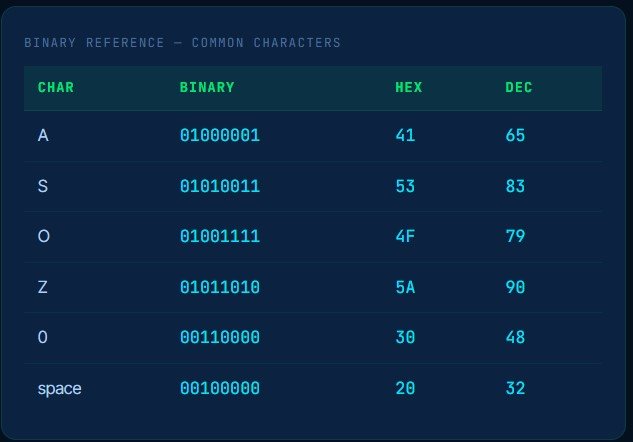
ASCII decimal values (0–127). Represents characters as their standard numeric code. S = 83, O = 79, space = 32. Common in programming and character encoding tables.

Binary

8-bit binary code. The language of computers β€” every character encoded as a unique sequence of 0s and 1s. S = 01010011. Each byte = one character.

β‘£ Action Buttons β€” Play Β· Stop Β· Sound Β· Light Β· Vibrate Β· Swap

Between the INPUT and OUTPUT panels sits a row of action buttons. These control audio playback, output modes, and the swap function. They activate fully when your output format is set to Morse code.

β–Ά Play

Starts CW (Continuous Wave) audio playback of your Morse code output. Each dot plays as a short beep, each dash as a longer beep, with correct ITU timing. Use when Output format is set to Morse code to hear your converted message as authentic Morse audio.

⏹ Stop

Stops audio playback immediately and resets to the beginning of the message. Use Stop to end a Morse playback session or to restart from the first character after pausing.

πŸ”Š Sound

Toggles audio output on or off. When Sound is active, pressing Play produces CW beep tones for every dot and dash. Turn Sound off to use Light or Vibrate output silently without any audio.

πŸ’‘ Light

Activates the screen flash output mode. Instead of (or alongside) audio, the screen flashes in the Morse dot-dash timing pattern of your converted message β€” short flash for dot, long flash for dash. Ideal for visual learners and hearing-impaired users.

πŸ“³ Vibrate

Pulses your mobile device’s haptic motor with the Morse timing pattern β€” each dot and dash felt as a physical vibration. Perfect for silent environments, accessibility use, or tactile Morse code learning on smartphones and tablets.

⇄ Swap

Swaps both the content and the format settings of INPUT and OUTPUT simultaneously. Instantly reverses the conversion direction — e.g. from Text→Binary to Binary→Text — without retyping. The quickest way to decode what you just encoded.

β‘€ Settings Panel β€” Speed (WPM), Pitch (Hz) & Volume

The βš™ Settings panel below the action buttons contains three sliders that control Morse audio playback. These apply when Play is active with Morse code as your output format.

Speed (WPM): 20 β€” Morse Timing Slider

Controls how fast the Morse code plays, measured in Words Per Minute. The default 20 WPM is the standard amateur radio operating speed. Use 5–10 WPM for beginners learning to recognise letter patterns. Use 25–35+ WPM for advanced CW practice. The label beneath the slider confirms (Morse timing) β€” this slider has no effect on non-Morse output formats.

Pitch (Hz): 600 β€” Tone Frequency Slider

Sets the audio tone frequency of each CW beep. The default 600 Hz is in the comfortable mid-range most listeners prefer. Lower values (400–500 Hz) produce a deeper tone. Higher values (700–900 Hz) produce a sharper beep. Most amateur radio operators work in the 550–700 Hz range for extended practice sessions.

Volume: 80% β€” Loudness Slider

Adjusts playback loudness independently of your device system volume. Default is 80%. Increase for noisy environments; decrease for quiet spaces. Applies to all Morse audio output through the Play button.

β‘₯ Status Bar β€” Conversion Direction Indicator

At the very bottom of the tool is a dark status bar that reads something like “β„Ή Converted text β†’ binary”. This is your live confirmation of the active conversion β€” it tells you exactly which format the INPUT contains and which format the OUTPUT is being produced in.

The status bar updates automatically every time you change either the Input format or Output format dropdown. If you see unexpected output, check the status bar first β€” it confirms the current conversion direction and helps you spot if the wrong format is selected. For example, if it reads “Converted morse code β†’ text” you know Input is Morse code and Output is Text.

Quickest workflow: Set Input format β†’ type/paste your content β†’ set Output format β†’ result appears instantly in OUTPUT. Click Copy to use it. Click Swap to reverse direction. If output is Morse code, press Play to hear it. Adjust Speed, Pitch, Volume in Settings.

All 20 Conversion Combinations β€” What You Can Convert

Because both INPUT and OUTPUT dropdowns support all five formats, the tool covers every possible format pair in both directions. Here is what each group of conversions is used for.

Text ↔ Binary

The classic binary translator pair. Text to binary converts every letter, number, and symbol to its 8-bit ASCII byte. Binary to text decodes 0s and 1s back to readable characters. Used by students learning computer science, developers debugging encoding, and anyone curious about the machine-level representation of data.

Binary ↔ Morse Code

A unique combination available on very few online tools. Convert binary code directly to Morse code output β€” or decode Morse code to binary β€” in one step. Useful for cryptography exercises, computer science + communications crossover studies, puzzle design, and signal encoding research.

Text ↔ Morse Code

Convert readable text to ITU International Morse code dots and dashes β€” then play it as CW audio using the Morse Code Player. Reverse it to decode any Morse code message back to plain text. Used by ham radio operators, Morse learners, puzzle designers, and emergency preparedness training.

Binary ↔ Hexadecimal

Convert binary code to its hexadecimal equivalent and back. A core conversion in computer science β€” each group of 4 binary digits maps to exactly one hex digit. Developers use this constantly when reading memory dumps, working with colour values, or debugging at the byte level.

Text ↔ Hexadecimal

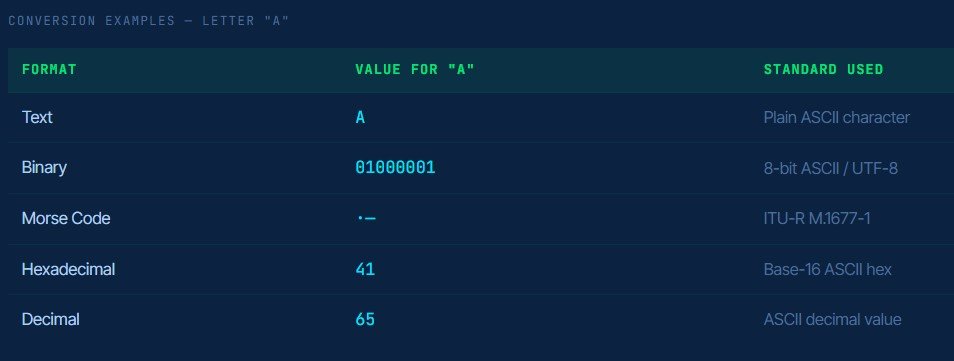
Convert text to base-16 hex values and decode hex strings back to text. Hexadecimal is the standard notation in HTML colour codes, memory addresses, and hex dump debugging. A = 41, B = 42, Z = 5A in hex. Essential for web developers, programmers, and network engineers.

Binary ↔ Decimal

Convert binary numbers to their decimal (base-10) equivalent and reverse. 01000001 = 65. Essential for computer science students learning number systems, programmers working with bitwise operations, and anyone studying how binary encoding maps to numerical values.

Text ↔ Decimal

Convert text to its ASCII decimal values and decode decimal numbers back to characters. A = 65, Z = 90, space = 32. Used in programming for ASCII table lookup, character encoding verification, and learning how computers represent alphanumeric data numerically.

Morse ↔ Hex Β· Decimal Β· Binary

Convert Morse code directly to Hexadecimal, Decimal, or Binary output β€” or use any of those number formats as input to produce Morse code with audio playback. These cross-format conversions are rare capabilities that make this tool uniquely powerful for multi-format code work.

What Is Binary Code? β€” The Complete Beginner Guide

Binary code is theΒ fundamental language of computersΒ β€” a number system that uses only two digits:Β 0Β andΒ 1. These two values correspond directly to the two states of an electronic switch: off (0) and on (1). Every piece of digital data β€” every letter you type, every image displayed, every instruction a processor executes β€” is ultimately stored and processed as a sequence of 0s and 1s.

Binary is aΒ base-2 number system, compared to the decimal (base-10) system humans use in everyday life. In decimal, each position in a number represents a power of 10. In binary, each position represents a power of 2 β€” starting from 2⁰ = 1 on the right and doubling with each position to the left: 1, 2, 4, 8, 16, 32, 64, 128.

Text is encoded in binary usingΒ ASCIIΒ (American Standard Code for Information Interchange) β€” a character encoding standard developed in 1963 that assigns a unique 7-bit or 8-bit binary sequence to each letter, digit, and symbol. The letterΒ AΒ is ASCII value 65, which in binary isΒ 01000001. LowercaseΒ aΒ is ASCII value 97, which isΒ 01100001.

In modern computing, text is encoded usingΒ UTF-8Β β€” a variable-length encoding system that extends ASCII to cover over 143,000 characters including all world languages, symbols, and emoji. For standard English characters (A–Z, 0–9, common punctuation), UTF-8 and ASCII produce identical binary output.

Understanding binary code is foundational to computer science, programming, network security, and digital electronics. Binary knowledge helps developers understandΒ memory allocation, data types, character encoding, andΒ bitwise operations. It is the first number system taught in computer science curricula worldwide.
What Is Binary Code

Who Uses the Binary Code Translator?

A multi-format converter this comprehensive serves a wide range of users β€” from school students to professional developers.

Developers & Programmers

Convert text to binary, hex, or decimal for debugging character encoding issues, inspecting byte-level data, building encoding utilities, or verifying ASCII values. The hexadecimal and binary output pairs are especially useful for low-level programming, memory inspection, and network packet analysis.

Computer Science Students

Binary, hexadecimal, decimal, and ASCII encoding are core topics in every computer science curriculum. Use this tool to instantly verify manual number system conversions, explore how text is stored as bytes, understand character encoding, and practise converting between all number system bases.

Amateur Radio Operators

Set output to Morse code and use the full Morse Code Player β€” Play, Sound, Light, Vibrate, Speed WPM, Pitch Hz, Volume β€” to practise and transmit messages. The unique Binary-to-Morse and Hex-to-Morse conversions are particularly useful for advanced CW operators exploring the relationship between digital encoding and Morse signalling.

Puzzle & Escape Room Designers

Create multi-layer ciphers that chain formats together β€” for example: a clue written in text, encoded to binary, converted to hexadecimal, with the final answer as Morse code audio. The Swap button makes testing and reversing each layer quick and accurate, without any manual recalculation.

Teachers & Educators

Use this tool in STEM and computer science lessons to show how the same text looks in five different encoding formats simultaneously. The live conversion and Swap function make it an ideal interactive classroom demonstration tool for teaching binary, ASCII, hexadecimal, and Morse code in context.

Cybersecurity & CTF Players

Capture the Flag competitions frequently encode flags in binary, hex, and decimal. This tool decodes all three to text in one step β€” and re-encodes in any direction. The Morse output pair adds an extra layer for challenges that involve audio or light-based encoding, all handled in a single tool.

Frequently Asked Questions

Everything you need to know about converting between binary, text, Morse code, hexadecimal, and decimal.
What formats can this tool convert between?
The tool supports five formats: Text, Binary, Morse Code, Hexadecimal, and Decimal. Both the Input and Output dropdowns offer all five options, so any format can be converted to any other β€” giving you up to 20 unique conversion combinations. This includes standard pairs like text-to-binary and binary-to-text, plus rare combinations like binary-to-Morse and hexadecimal-to-Morse.
Set Input format to “Text” and Output format to “Binary”. Type or paste your text in the INPUT box. The binary output appears instantly. Each character is encoded as an 8-bit ASCII byte β€” for example, A = 01000001, S = 01010011. Copy the result using the green Copy button in the OUTPUT panel.

Set Input format to “Binary” and Output format to “Text”. Paste your binary code β€” groups of 8 bits separated by spaces β€” into the INPUT box. The decoded text appears in the OUTPUT panel instantly. Alternatively, if you just converted text to binary, click the Swap button to instantly reverse the conversion and decode your result back to text.

The Swap button does three things simultaneously: it moves the INPUT content to the OUTPUT panel, moves the OUTPUT content to the INPUT panel, and swaps the selected format in both dropdowns. This reverses the conversion direction in one click — turning Text→Binary into Binary→Text instantly, with no retyping. It is the fastest way to verify a round-trip encoding and decoding.

Binary is base-2 β€” it uses only 0 and 1. It is the native language of computers. Hexadecimal is base-16 β€” it uses digits 0–9 and letters A–F. It is a more compact way to represent binary data (4 bits = 1 hex digit). Decimal is base-10 β€” it uses digits 0–9, representing each character as its ASCII numeric value. All three are just different ways of representing the same underlying data β€” this tool converts between all of them and plain text or Morse code.

Yes. Set Input format to “Binary” and Output format to “Morse code”. Paste your binary code into INPUT and the converted Morse code appears in OUTPUT. You can then press Play to hear the Morse audio, use Light for visual flash output, or Vibrate for haptic output β€” making this the only tool that chains binary decoding directly to Morse playback.

Yes β€” completely free. No account, signup, or download required. All 20 conversion combinations, the Morse Code Player (Play, Stop, Sound, Light, Vibrate), the Swap and Copy buttons, and all three Settings sliders (Speed WPM, Pitch Hz, Volume) are fully available at no cost. Everything runs in your browser β€” no data is ever sent to a server.

Enhance your learning experience by exploring additional tools available on InMorseCode, including:

Internal tools work together to build a complete Morse code learning ecosystem.