
Convert plain English text into Wingdings symbols or decode Wingdings back to readable text instantly — no download, no sign-up, completely free. Our Wingdings Translator supports all four font variants: Wingdings 1, Wingdings 2, Wingdings 3, and Webdings, giving you full access to over 200 iconic dingbat symbols with a single click.
Wingdings is a symbolic font where letters are replaced by icons and symbols. Translate text to secret symbols or decode Wingdings back to readable text!
Your Wingdings translation will appear here
A Wingdings Translator is a free online tool that instantly converts regular English text into Wingdings symbols — and decodes Wingdings symbols back into readable text. Whether you want to create a secret message, design decorative typography, or decode mysterious symbols from a game like Undertale, this tool handles it all in one click.
Wingdings is a symbol font created by Microsoft in 1990 by Charles Bigelow and Kris Holmes. Instead of displaying standard letters, it replaces each character with a unique pictogram — arrows, stars, hands, shapes, checkmarks, and more. The name “Wingdings” comes from dingbats, a term used by early printers for decorative ornamental symbols.
Our Wingdings Translator at inmorsecode.com supports all major Wingdings font families: Wingdings (Original), Wingdings 2, Wingdings 3, and Webdings — giving you hundreds of symbol options right in your browser, with no download or installation required.
Our tool on InMorseCode.com goes one step further: it also works in reverse. If your image contains Morse code patterns (rows of dots and dashes printed or drawn on paper, on a screen, or in a document), you can switch to “Morse Code in Image” mode and the system will attempt to detect and decode those patterns back into plain English text.
This makes the tool genuinely bidirectional — you can translate text from image to Morse code, or decode Morse code from image to text, all from a single upload interface. Every conversion is displayed in the live Morse Code Player, where you can listen to the decoded signal as audio, watch it flash as light, feel it vibrate on mobile, and share or repeat it instantly.
The tool is designed to be simple and intuitive. Here is a full explanation of every section, button, and feature visible in the tool interface:
At the top of the tool you will see a section called ‘Translation Direction’ with two buttons side by side:
Text to Wingdings (Convert text to symbols): Click this green button when you want to type or paste normal English text and have it converted into Wingdings symbols. This is the encoding mode — it turns readable words into pictographic dingbats. This button is selected by default.
Wingdings to Text (Decode symbols to text): Click this blue button when you have Wingdings symbols that you want to convert back into readable English text. This is the decoding or reverse-translation mode. It works as a Wingdings decoder or Wingdings to English translator.
Tip: The two arrow icon next to ‘Translation Direction’ and the hint text ‘Click buttons above to switch translation direction’ remind you that you can swap modes at any time just by clicking the appropriate button.
Scroll down to the ‘Input Text’ section. This is where you type or paste the content you want to translate. The large text area is labeled ‘Enter text to translate to Wingdings’ (or ‘Enter Wingdings to decode’ when in decode mode). You can type directly, paste from your clipboard, or use the sample buttons described below.
At the bottom of the input box you will see three live counters that update as you type:
These counters help you track the length of your translation in real time, which is useful when creating messages or designs with a specific size limit.
X Clear (Red button): Clicking this instantly erases everything in the input text area, resetting it to blank. Use this whenever you want to start a fresh translation without having to manually delete your previous text.
Sample (Blue button with pencil icon): Clicking Sample automatically fills the input box with a pre-written example sentence. This is perfect if you are new to the tool and want to see how the translation works before entering your own text. It gives you an instant demonstration without any effort.
Once your text is ready, click the large green ‘Translate to Wingdings’ button at the bottom of the Input Text section. This is the main action button of the tool. Clicking it instantly processes your input and converts every letter, number, and compatible punctuation character into its corresponding Wingdings symbol. The translated output will appear in the result area immediately.
If you are in Wingdings to Text mode, the same button will appear as ‘Decode Wingdings’ and will convert your symbol input back into readable English.
Below the translation section you will find the ‘Wingdings Font Family’ panel. This is where you customize which version of the Wingdings symbol set you want to use.
Select Font Family (Dropdown menu): Click the dropdown to choose from four options — Wingdings (Original), Wingdings 2, Wingdings 3, and Webdings. Each variant uses a different character-to-symbol mapping, so the same letter may produce a different icon depending on which font you select. Wingdings 1 is the classic original version with hands, stars, and everyday symbols. Wingdings 2 extends the set with additional arrows and symbols. Wingdings 3 adds geometric shapes and advanced icons. Webdings is a modern symbol font with icons like airplanes, folders, and faces.
Symbol Size slider (24px default): Use the slider to increase or decrease the display size of the Wingdings symbols in the preview area. Dragging the slider right makes the symbols larger; dragging it left makes them smaller. This affects how the symbols appear in the Font Preview box and helps you inspect the output clearly.
Font Preview box: This area displays a live preview of the selected Wingdings font at the chosen size. It shows you a sample of the symbols available in the currently selected font family, so you can visually confirm your choice before translating.
The status message ‘Ready to translate! Select translation mode and enter text.’ appears in this section to confirm the tool is active and waiting for your input.
The ‘Quick Symbols and Examples’ section at the bottom of the tool provides shortcuts to speed up your workflow.
Common Symbol Groups: Six category buttons — Letters, Numbers, Shapes, Arrows, Weather, and Objects — let you instantly browse and insert groups of related Wingdings symbols. Clicking any category loads its associated symbols into the Selected Symbols display area below, so you can pick and use them directly without typing.
Quick Examples: Four preset example buttons — Hello World, Secret Message, Numbers 1-0, and Alphabet — automatically load a specific example translation into the tool. Clicking ‘Hello World’ translates that phrase into Wingdings immediately. ‘Secret Message’ shows you a sample encoded message. ‘Numbers 1-0’ converts the full digit set. ‘Alphabet’ converts A through Z so you can see the complete character mapping at a glance.
Selected Symbols display: This row at the very bottom displays the Wingdings symbols that correspond to your current input or selected category. You can visually inspect every symbol and copy them for use in documents, social media posts, or messaging apps.
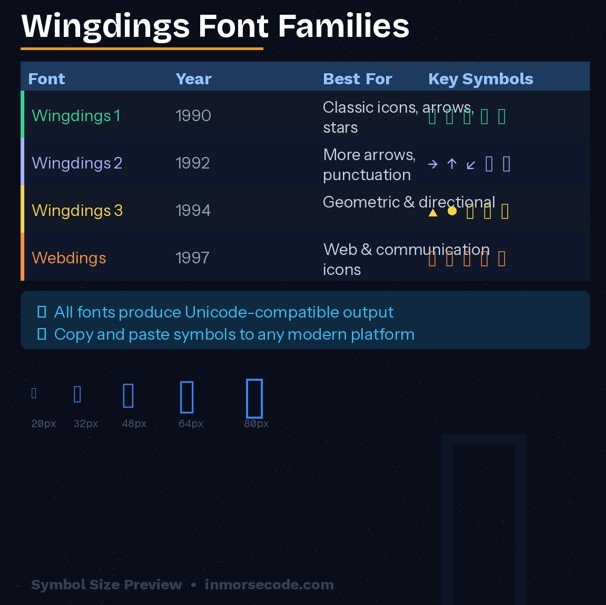
| Font Name | Year | Category | Best For |
|---|---|---|---|
| Wingdings | 1990 | Classic | Symbols, arrows, stars, everyday icons |
| Wingdings 2 | — | Extended | More arrows, punctuation-style symbols |
| Wingdings 3 | — | Advanced | Geometric shapes, advanced directional icons |
| Webdings | 1997 | Web Icons | Web and communication-related icons (planes, folders, faces) |
All four fonts map standard keyboard characters (A–Z, 0–9, punctuation) to unique pictograms. Our translator supports full Unicode-compatible output, which means the symbols can be copied and pasted across most modern platforms and devices.
The two core functions of this tool work in opposite directions:
English to Wingdings takes each letter you type and replaces it with its corresponding Wingdings symbol using the character substitution table built into the font. For example, typing “A” in Wingdings 1 produces a specific pictogram icon.
Wingdings to English (Decode mode) reverses this process — it reads each Wingdings symbol and maps it back to the original letter or character. This is how you decode Wingdings messages sent by others or found in games, puzzles, and design files.
Both modes support copy-paste input, live previews, and instant output — no waiting, no page reload.
Translate unlimited text with no account needed
Wingdings 1, 2, 3, and Webdings in one tool
Preview symbols at any size before use
Know exactly what you’re working with
Great for new users
Browse letters, numbers, shapes, arrows, weather, and objects
Works across Windows, Mac, Android, iOS, and all major browsers
Runs entirely in your browser
Your text is not stored or logged
Every character on your keyboard maps to a specific Wingdings symbol. The substitution is alphabetical and positional: the letter ‘A’ always maps to the same symbol, ‘B’ to the next, and so on through Z. Numbers and punctuation marks also have their own corresponding Wingdings icons. This systematic mapping is what makes Wingdings a cipher-like encoding system — once you know the Wingdings alphabet chart, you can manually translate any message in either direction.
Our tool handles all of this mapping automatically. You simply type your text, select your font variant, and the converter applies the full Wingdings substitution table instantly. The output is Unicode-compatible, meaning you can copy and paste the symbols into any application that supports Unicode characters — including modern web browsers, word processors, and mobile messaging apps.
Find answers to common questions about Morse code and how to use our Wingdings Translator effectively
Wingdings is a symbol font developed by Microsoft in 1990. It replaces standard keyboard characters with pictograms and decorative symbols. It is classified as a “dingbat” font, a category of ornamental typefaces used for typographic decoration.
Select “Text to Wingdings” mode, type or paste your text in the input box, choose your font family, and click Translate. The Wingdings output appears instantly and can be copied anywhere.
Select “Wingdings to Text” mode, paste your Wingdings symbols into the input box, and click Decode. The tool maps each symbol back to its corresponding English letter.
Yes. Paste the Wingdings characters from Undertale into the decode input. For accurate W.D. Gaster translations, use capital letters.
Both are dingbat symbol fonts, but they contain different symbol sets. Wingdings is the original font family; Webdings was released in 1997 and focuses more on web-related and communication icons.
Yes. The output is Unicode-compatible, which means it can be pasted into most social platforms, messaging apps, and document editors that support Unicode characters.
Yes — completely free, with no limits, no sign-up, and no hidden fees.
A dingbat font is a typeface in which standard keyboard characters are replaced by ornamental symbols rather than letters. Wingdings is the most well-known dingbat font. The term ‘dingbat’ comes from early printing, where printers kept a collection of decorative ornaments and spacers — called dingbats — for use in typesetting.
A fancy text generator changes the visual style or appearance of letters — for example, making them bold, italic, or cursive using Unicode look-alike characters. A Wingdings converter performs actual character substitution, replacing each letter with a completely different pictographic symbol based on the Wingdings font mapping. The output is not stylized text — it is a different symbol for each character.
Enhance your learning experience by exploring additional tools available on InMorseCode, including:
Internal tools work together to build a complete Morse code learning ecosystem.