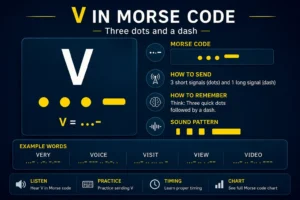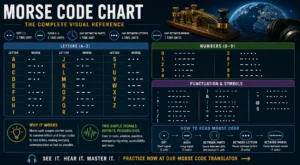
You have a photo of a printed telegram. A screenshot from a video game showing a string of dots and dashes. A picture of a hand-drawn Morse code chart. A puzzle image full of signal patterns. Or maybe a scanned document with English text you want to hear in Morse code. In every one of these situations, you need the same thing: a morse code translator from image a tool that can look at a picture and do what your eyes and hands would otherwise do manually.
This guide is based on real OCR workflows, Morse timing standards (ITU-R M.1677-1), and practical testing across screenshots, scanned documents, puzzle images, and historical telegrams using the InMorseCode image decoder.
What Is Morse Code Image Decoding?
Morse code image decoding is the process of taking a photograph, screenshot, scan, or any digital image and automatically extracting and translating its content into Morse code or decoding Morse patterns visible in the image back into readable English text. It combines two technologies: Optical Character Recognition (OCR) for reading text, and Morse code translation for converting that text into dots and dashes or vice versa.
Before tools like this existed, decoding a photographed telegram meant manually transcribing every letter you could see, then looking up each character in a Morse reference table. With an image morse code translator, the same job takes under five seconds. You upload the image, click one button, and the decoded output appears.
Two Modes: Text in Image vs Morse in Image
A proper morse code image decoder needs to handle two very different situations:
• Text in Image mode: Your image contains ordinary English text a printed document, a typed letter, a sign, a textbook page. The tool reads that text with OCR and converts it to Morse code. You hear the result as audio through the player.
• Morse Code in Image mode: Your image shows actual dot-and-dash patterns a printed Morse chart, a handwritten signal sequence, a puzzle image with · and symbols. The tool detects those patterns and decodes them back to plain English.
The InMorseCode image file to Morse tool supports both modes from the same interface. This makes it genuinely bidirectional: you can convert image to Morse code or decode Morse code from image to text with a single upload.
What Makes a Good Morse Code Picture Translator?
Not all image-based tools are equal. A high-quality morse code picture translator needs to:
- Support multiple image formats (not just PNG and JPG)
- Handle both English text extraction and Morse pattern recognition
- Process everything locally without sending your files to a server
- Provide audio, light, and vibration output so you can hear and feel the result
- Work equally well on desktop and mobile
These are the exact capabilities of the InMorseCode image to Morse code converter, and each one is explained in full detail throughout this guide.
How OCR Reads Morse Code from Photos and Images
OCR, Optical Character Recognition is the technology that makes it possible to extract text from any image. It uses pattern recognition and machine learning to scan every pixel of an uploaded file, identify shapes that match known characters, and assemble them into a readable text string. That string is then passed directly to the Morse translation engine.
Understanding how OCR works helps you get better results from any morse code photo translator. Every problem people encounter garbled output, missing characters, wrong letters has a root cause in the OCR pipeline, and knowing that pipeline tells you exactly how to fix the problem.
Step 1: Image Preprocessing
When you upload an image to the photo morse code translator, the first thing the system does is preprocess the file. Preprocessing can include converting the image to grayscale, increasing contrast between text and background, applying noise reduction, and binarizing the image (converting every pixel to pure black or pure white). These steps make letter shapes cleaner and sharper before the character recognition stage begins.
The tool offers manual preprocessing options Auto (Recommended), Enhance Text, Grayscale, and Black and White so you can choose the approach that best matches your image type. For most clean, modern screenshots, Auto works perfectly. For older scanned documents or photographs with uneven lighting, Enhance Text or Black and White often produces better results.
Step 2: Character Segmentation
Segmentation is the process of dividing an image into individual character regions. The OCR engine identifies where one letter ends and the next begins by looking for vertical and horizontal gaps in pixel density. This is why text alignment matters so much: when text is straight and horizontal, segmentation works reliably. When text is tilted, rotated, or skewed, segmentation boundaries become unreliable and misreads occur.
Step 3: Pattern Matching Against Character Library
Each segmented region is compared against a library of known character shapes using machine learning classifiers. The engine assigns a probability score to each possible match and selects the highest-scoring character. This step is also where confidence scores are generated the percentage accuracy figure you see in the tool output tells you how confident the OCR engine was about its overall extraction.
Step 4: Morse Pattern Recognition Mode
When you select “Morse Code in Image” mode, the processing pipeline switches entirely. Instead of looking for alphabetic character shapes, the engine switches to a dot-dash segmentation algorithm. It identifies marks in the image by their relative size and spacing: short marks are classified as dots (dits), longer marks as dashes (dahs), and gaps of increasing width are classified as intra-character gaps, inter-character gaps, and word gaps respectively.
The classified pattern is then matched against the full ITU-R M.1677-1 International Morse Code alphabet to produce decoded English text. This is the mode to use when your image shows printed Morse charts, handwritten dot-dash sequences, historical telegraph documents, or any puzzle image containing Morse code patterns.
Step 5: Text-to-Morse Translation
In standard Text-in-Image mode, once OCR has extracted a text string from the image, that string passes immediately to the Morse translation engine. Each character is mapped to its International Morse Code equivalent: A becomes ·—, B becomes —···, and so on through all 26 letters, 10 digits, and supported punctuation marks. The resulting Morse string is fed to the Morse Code Player where you can hear, see, and feel it.
| Key Insight:The entire OCR and Morse translation pipeline runs inside your browser. Your image is never sent to any external server. Everything preprocessing, character recognition, pattern matching, Morse encoding happens locally on your device. Your photos and screenshots remain completely private. |
How to Decode Morse Code from an Image: Step-by-Step
This section walks through the complete process of using the InMorseCode image morse code translator from first upload to final decoded output. Follow these steps regardless of whether your image contains English text or Morse code patterns.
Step 1: Prepare Your Image
Before uploading, a few seconds of preparation will significantly improve your results. Check these things:
• Contrast: The text or dot-dash patterns should be clearly darker (or lighter) than the background. Low-contrast images grey text on cream, faded ink on aged paper are the most common cause of poor OCR results.
• Orientation: The text should be horizontal, not rotated or tilted. If your image is slightly skewed, rotate it straight in any photo editor before uploading.
• Crop to the relevant area: If your image contains a large portion of non-text content alongside a small text block, crop down to the text region before uploading. More text relative to image area means better recognition.
• File size: The tool supports images up to 5 MB. Most phone photos and screenshots are well within this limit. If your image is too large, resize it to 1920px width maximum before uploading.
• Format: PNG and BMP give the best results because they are lossless. JPG and WEBP are fully supported and work well for most photos.
Step 2: Upload Your Image
Go to the Image File to Morse tool at InMorseCode. You will see a large upload panel labeled “Drop your image here”. Either drag your image file from your desktop directly into this box, or click the Browse Images button to open your device’s file picker. On mobile, this opens your camera roll and allows you to select a photo directly. A preview thumbnail appears immediately after the image loads, confirming the file is ready.
Step 3: Choose Your Processing Mode
This is the most important step. Under Text Type in the OCR Settings panel, you will see two options:
• English Text (default) Use this when your image contains ordinary readable text: printed documents, typed letters, signs, screenshots with written words, textbook pages, labels, captions.
• Morse Code in Image Use this when your image shows actual dots and dashes: a printed Morse alphabet chart, handwritten signal patterns, a puzzle image with ··· ——— symbols, historical telegraph documents, or any image where the content is literally Morse code rather than English words.
Choosing the wrong mode is the single most common reason for poor results. If you upload a photograph of a printed Morse code chart but leave the mode on English Text, the OCR engine will try to read dots and dashes as letters and produce garbled output. Switch to Morse Code in Image and the result will be accurate.
Step 4: Select Image Processing (Optional)
Under Image Processing, choose between Auto, Enhance Text, Grayscale, and Black and White. For clean screenshots and modern digital images, leave this on Auto (Recommended). For older documents, photographs with uneven lighting, or images with coloured or patterned backgrounds, try Enhance Text first, then Black and White if results are still poor.
Step 5: Click “Read Text from Image”
Click the Read Text from Image button. The OCR engine scans your image and extracts all recognizable content. Processing typically completes within two to four seconds. Three statistics appear in the output panel: Extracted Text (the character count of what was read), Confidence (the OCR accuracy percentage), and Processing Time (how long extraction took).
Step 6: Review the Extracted Text
Check the Extracted Text field to see what the OCR engine found. You can edit this text directly using the Edit Text button if any characters were misread. Common corrections include fixing a capital I misread as the number 1, or a zero misread as a capital O. For Morse code output: the Morse Code panel shows the full dot-dash translation with a toggle wrap option for long sequences.
Step 7: Play, Share, or Download
Once extraction is complete, the Morse Code Player activates automatically. Click Play Morse to hear the decoded signal as audio beeps at your chosen speed and pitch. Enable Light mode to see your screen flash the Morse rhythm. On a smartphone, enable Vibrate to feel the pattern through haptic feedback. Use the Share button to send the decoded result to anyone via a link, or Download Results to save the output to your device.
| Pro Tip:If your decoded output has errors, try a different Image Processing option before re-uploading a new version. Switching from Auto to Black and White often resolves issues with images that have non-white backgrounds or unusual colour contrast. |
Best Image Formats for Accurate Morse Code Decoding
Not all image formats perform equally in an image to morse code workflow. Understanding the differences helps you choose the right format when capturing or saving images, and helps you know what to expect from existing files.
| Format | Type | Best For | OCR Quality |
| PNG | Lossless | Screenshots, digital graphics, diagrams | Excellent, no compression artifacts |
| BMP | Lossless | Windows documents, uncompressed captures | Excellent, maximum pixel fidelity |
| JPG / JPEG | Lossy | Camera photos, scanned documents | Good, slight edge blurring possible |
| WEBP | Lossy/Lossless | Web images, modern browser screenshots | Very Good, excellent compression |
| GIF | Lossless (limited) | Simple diagrams, text charts, reference cards | Good for simple text, limited colour depth |
PNG: The Best Choice for Screenshots
PNG is the ideal format for any image you are creating or capturing specifically for morse code image decoding. It is a lossless format meaning no pixel information is discarded when saving so letter edges and dot-dash boundaries remain perfectly crisp. When taking a screenshot to upload to the tool, always save as PNG if your operating system or app gives you the option. Windows Snipping Tool, macOS CMD+Shift+4, and most mobile screenshot functions all produce PNG by default.
JPG: Fine for Camera Photos
JPG compression introduces subtle blurring around character edges called ringing artefacts. In most modern photographs at normal quality settings, this blurring is small enough that the OCR engine handles it without problems. The issue arises with highly compressed JPGs for example, a photograph that has been resized and re-saved multiple times, or an image from a very low-quality camera source. If your JPG produces poor results, try the Enhance Text preprocessing option to sharpen edges before the OCR engine runs.
BMP: Highest Quality, Largest File Size
BMP is an uncompressed format that stores every pixel at full quality. It produces the best possible OCR accuracy but generates very large file sizes a typical full-screen BMP can be 5–15 MB, which may exceed the tool’s 5 MB limit. If you have a BMP that is too large, convert it to PNG first (a lossless conversion) and the result will be identical in quality at a fraction of the file size.
WEBP: Modern and Efficient
WEBP is Google’s modern image format that achieves smaller file sizes than JPG at equivalent or better visual quality. Browser screenshots taken in Chrome often save as WEBP by default. The tool supports WEBP fully, and in practice WEBP images perform very similarly to JPG in OCR accuracy well within acceptable range for most use cases.
Decoding Morse Code from Screenshots and Puzzle Images
Screenshots and puzzle images are among the most common reasons people search for a morse code translator picture to text free tool. Whether you’ve found Morse in a video game, an escape room clue, an ARG (Alternate Reality Game) puzzle, a film still, or a social media post, the process of decoding it follows the same path and a few specific techniques make a significant difference to accuracy.
Where Morse Code Appears in Screenshots
Morse code turns up in digital images more often than most people expect. Common sources include:
- Video game HUDs, terminals, and in-game documents (Fallout, Metal Gear Solid, Call of Duty, Watch Dogs)
- Escape room image-based clues sent by puzzle designers
- ARG (Alternate Reality Game) images shared on Reddit, Discord, and puzzle forums
- Film and TV screenshots Interstellar, Stranger Things, Fringe, and many others embed real Morse in frames
- Social media posts where Morse is used as a cipher or hidden message
- Amateur radio community reference cards and CW practice sheets saved as images
- Historical document scans uploaded to archive databases and digital libraries
How to Decode Morse from a Screenshot: Best Practice
When you’ve found a screenshot containing Morse code and want to use the picture morse code translator to decode it, follow these specific steps for maximum accuracy:
1. Crop tightly around the Morse signal. Exclude as much surrounding visual noise as possible. If the dots and dashes occupy a small part of a larger game screenshot or image, crop to just the signal region before uploading. The more of the frame that is occupied by the Morse pattern itself, the better the segmentation algorithm performs.
2. Ensure high contrast. Morse signals on dark game backgrounds (black terminal text, for example) or unusual colour combinations can confuse the pattern recognition. If the original screenshot has low contrast, increase contrast in a photo editor before uploading. High contrast is the single biggest factor in accurate Morse pattern recognition from screenshots.
3. Select “Morse Code in Image” mode. This is critical. If your screenshot shows literal dot-dash patterns, you must switch the Text Type to Morse Code in Image before clicking Read Text from Image. Leaving it on English Text will cause the OCR engine to try to read the dots and dashes as letters, which produces incorrect output.
4. Try different Image Processing options. If Auto doesn’t produce the correct result, try Black and White mode. This binarises the image to pure black and white, which often helps with screenshots from games or digital sources that have coloured or gradient backgrounds behind the Morse signal.
5. Manually correct small errors. If the decoded output is mostly correct but has a few character errors, use the Edit Text function to fix them before playing the audio. The OCR engine gives you a confidence percentage anything above 85% is reliable; below 70% suggests the image quality needs improvement.
Tips for Puzzle Images with Hidden Morse
Puzzle designers and ARG creators often make Morse code difficult to decode intentionally embedding signals in noise, using unusual dot-dash representations, or layering Morse over other visual elements. When standard decoding fails, these approaches often succeed:
• Invert the image colours. Some puzzles hide Morse as light marks on a dark background. Inverting the image (turning black to white and vice versa) often reveals the signal cleanly. Any image editor can do this in one click. Then upload the inverted version.
• Increase zoom before capturing. If the Morse signal is very small in the original image, zoom in on the relevant section and retake the screenshot at a larger size before uploading. Larger dots and dashes give the segmentation algorithm more pixels to work with.
• Separate visual layers. If Morse dots and dashes are embedded over a complex background (a star field, a texture, a photograph), try desaturating the image to greyscale first, then applying a contrast boost to isolate the signal from the background noise.
• Check for Morse in unexpected places. In ARG images, Morse code is sometimes hidden in image metadata, in the timing of animated GIFs, or in the spacing of seemingly unrelated visual elements. The tool handles standard dot-dash patterns in images; for unusual encoding you may need to manually transcribe the pattern first.
• Use the manual translation fallback. If OCR cannot decode a particularly difficult puzzle image, copy the dot-dash pattern by eye and paste it directly into the main InMorseCode text translator. Type dots as periods and dashes as hyphens, use a single space between characters and a forward slash between words: … — … decodes to SOS.
Common OCR Errors When Decoding Morse Code Images and How to Fix Them
Even with good image quality, OCR systems make predictable types of errors. Knowing which errors are most common and what causes each one lets you fix them quickly when they appear in your morse code decoder image to text output.
Character Substitution Errors
These are cases where one character is misread as a visually similar one. The most common substitutions:
| Misread as | Actually | Why it happens |
| 1 | I | Uppercase I and digit 1 are identical in many fonts |
| 0 | O | Zero and uppercase O are visually identical in some fonts |
| 5 | S | Lowercase s and number 5 share a similar curve |
| 8 | B | Capital B misread when enclosed shapes are unclear |
| rn | m | Two adjacent letters read as one in condensed fonts |
| cl | d | Spacing issues cause two letters to merge |
| . | — | Full stops misidentified as dashes in Morse mode |
The tool’s Edit Text function exists specifically for these corrections. If the confidence score is 90%+ but you spot one or two substitution errors, editing the extracted text directly is faster than re-uploading an improved image.
Segmentation Failures
Segmentation failures happen when the OCR engine cannot correctly identify where one character ends and the next begins. This produces merged characters (two letters read as one) or split characters (one letter read as two). The main causes:
• Kerning and tracking: In fonts where letters are spaced very closely, the engine may merge them. Solution: increase the image resolution or zoom level.
• Touching characters: In some handwritten or stylised fonts, adjacent letters physically touch. The engine reads them as one shape. Solution: use a cleaner font or increase contrast.
• Low resolution: Below approximately 100 DPI equivalent, character shapes become ambiguous. Solution: for scanned documents, scan at 150 DPI minimum; for photographed documents, photograph at closer range or higher zoom.
Morse Pattern Recognition Errors
When using Morse Code in Image mode, the most common errors involve the relative sizing of dots versus dashes:
• Dashes misread as dots: This happens when the printed or drawn dashes are too short relative to the dots. In the International Morse Code standard, a dash is exactly 3 times the length of a dot. When this ratio is not maintained in the image, the segmentation algorithm may classify both as dots. Solution: use a clearer, better-proportioned printed Morse chart, or manually type the pattern.
• Word gaps missed: The algorithm identifies word gaps by their length relative to character gaps (word gap = 7 time units; character gap = 3 time units). If spacing in the image is inconsistent or very tight, word boundaries may be missed. Solution: use the manual edit function to insert spaces where words should break.
• Background noise classified as dots: Specks of dust on a scanned document, JPEG compression artefacts, or a textured background can generate false dot detections. Solution: clean the image using the Black and White preprocessing option, which removes mid-tone noise before pattern recognition runs.
Low Confidence Output What to Do
If the tool reports a confidence score below 70%, the extracted text is likely to contain significant errors. Rather than spending time editing a poor result, improve the source image first:
6. Increase contrast using any photo editing app
7. Crop to remove non-text areas
8. Try a different Image Processing option in the tool
9. If photographing a physical document, photograph again in better lighting
10. If the image is a JPG with visible compression artefacts, try finding the original PNG or re-saving at a higher quality setting
Real-World Uses for a Morse Code Image Translator
The morse code translator with image capability serves a genuinely diverse audience. These are the most common real-world applications each one a distinct use case that the InMorseCode tool handles specifically and well.
Historical Document Archiving
Museums, libraries, and private collectors hold tens of thousands of physical documents printed telegrams, wartime communications, maritime logs, railroad dispatches that contain Morse code either as dot-dash patterns or as the English text that was originally transmitted in Morse. A morse code photo translator makes it possible to digitise and decode these materials at scale. Photograph the document, upload it, select the appropriate processing mode, and the decoded output is ready to copy into a database or transcription record. The tool’s confidence score gives archivists an immediate quality indicator for each extraction.
Education and Classroom Use
Teachers using Morse code as a STEM teaching tool can create image-based exercises print a Morse code message, photograph it, and give students the image file to decode using the image morse code translator. The Share button generates a link that can be distributed to an entire class with one click. Students can upload their printed worksheets or photographs of handwritten responses and immediately verify their answers by hearing the decoded result as audio.
Escape Rooms and Puzzle Design
Escape room designers regularly use Morse code as a puzzle mechanic because it is learnable in minutes but satisfying to decode. An image to morse code tool enables a new category of puzzle: give players a photograph, a printed card, or a screenshotted image containing Morse, and have them upload it to decode the hidden message. The Share link allows puzzle creators to verify their own clues upload the puzzle image, confirm the decoded output, share the link without having to manually type out every dot and dash.
ARG (Alternate Reality Game) Puzzles
The ARG community is one of the heaviest users of Morse code as a cipher, and images are one of the primary media through which ARG clues are distributed. A picture morse code translator that works on screenshots is indispensable for ARG solvers. Being able to screenshot a clue image from a game, a forum post, or a video still and upload it directly without manual transcription can save hours on a complex puzzle.
Amateur Radio Operators
Ham radio operators often work with printed reference material: CW contest logs, QSL cards with Morse annotations, frequency charts with beacon identifiers, and practice texts. The morse code image decoder lets operators photograph any of this material and instantly convert it to playable audio at a chosen WPM speed. Using the Advance Morse Code Machine on InMorseCode, operators can also practice with Farnsworth spacing, making the image tool a direct bridge between printed material and audio training.
Film, Television, and Media Analysis
Morse code appears frequently in popular media, from the bookshelf scene in Interstellar to signal sequences in Stranger Things, Lost, and Fringe. When viewers spot Morse code in a screenshot or frame grab, a morse code translator photo to text tool provides the fastest path to decoding it. Screenshot the relevant frame, upload it, and read the hidden message without having to count dots and dashes manually.
Emergency Communication Training
Emergency communicators and EMCOMM volunteers regularly train with printed Morse code drills, reference cards, and protocol documents. Being able to photograph any of this material and convert it instantly to audio allows trainers to create variable practice sessions different images containing different messages, decoded and played back at different speeds. The tool’s Light and Vibrate output modes also allow practice with non-audio Morse signaling, mirroring real-world scenarios where audio is unavailable.
Personal and Creative Use
Beyond professional applications, the morse code picture translator is widely used for personal creative projects: encoding names or messages in Morse for tattoos (photograph the design, verify the code is correct), creating Morse code jewellery text from a photograph of a personal message, decoding Morse messages found in hobby crafts, escape room subscription boxes, and commercial puzzles. Photographers and visual artists embed Morse code in their work as hidden signatures; this tool provides the key to read them.
Image Formats, Specifications, and Technical Standards
For users who want to understand the full technical picture of how the morse code translator image to text tool operates, this section covers the specifications, supported formats, and standards in detail.
| Specification | Value |
| Supported formats | PNG, JPG, JPEG, GIF, BMP, WEBP |
| Maximum file size | 5 MB per image |
| Recommended resolution | 150 DPI or higher for scanned printed documents |
| Optimal image type | High-contrast horizontal text on white or light background |
| OCR processing location | Entirely in your browser no server upload |
| Morse code standard | ITU-R M.1677-1 (International Morse Code) |
| Audio frequency range | 400–800 Hz (default: 600 Hz) |
| Playback speed range | 5–60 WPM (default: 20 WPM) |
| Output modes | Audio (Sound), Visual (Light), Haptic (Vibrate) |
| Mobile support | Full camera roll access, haptic feedback |
| Account required | None zero registration |
| Data privacy | No data stored; all processing is client-side |
The ITU-R M.1677-1 Standard
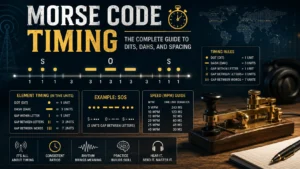
All Morse code output produced by this tool whether from a morse code image decoder result or a direct text translation follows the International Morse Code standard defined by the International Telecommunication Union in Recommendation M.1677-1. This is the globally recognized standard that governs timing ratios, character encoding, and prosing usage across all professional Morse applications: amateur radio, aviation, maritime communications, and emergency signaling. The timing ratios are: dot = 1 unit, dash = 3 units, intra-character gap = 1 unit, inter-character gap = 3 units, word gap = 7 units.
Frequently Asked Questions: Morse Code Image Decoding
How do I translate Morse code from an image online for free?
Go to the Image File to Morse tool at InMorseCode. Upload your PNG, JPG, GIF, BMP, or WEBP image using the Browse Images button or drag-and-drop. If your image contains English text to be converted to Morse, leave the settings on default and click Read Text from Image. If your image contains printed dot-dash patterns, switch Text Type to Morse Code in Image first. The decoded result appears immediately and plays as audio. Completely free with no account required.
Can the tool decode Morse code from a photo showing actual dots and dashes?
Yes. Select Morse Code in Image under Text Type before processing. This activates a dedicated pattern recognition mode that identifies dot and dash shapes by their relative size and spacing, decodes them against the ITU Morse alphabet, and outputs plain English text. Use this mode for any image that shows printed Morse code patterns rather than ordinary English writing.
What is the difference between “morse code translator picture to text” and “morse code translator picture to English”?
They are the same process described from two different perspectives. When the tool processes an image containing Morse code patterns, the output is English text. When it processes an image containing English text, the output is Morse code. The distinction people sometimes make in their search is really about which direction they want to translate: image of Morse → English, or image of English → Morse. The InMorseCode tool handles both from the same interface.
My image has poor OCR results. What should I try first?
Try these in order: (1) Switch Image Processing from Auto to Enhance Text. (2) Try Black and White mode. (3) Check that Text Type matches your image are you trying to decode Morse patterns but left the mode on English Text? (4) Increase the contrast of the source image using any photo editor. (5) Crop the image to remove non-text areas. (6) If photographing a physical document, photograph again in better lighting with the camera directly above the page.
Does the tool work on mobile phones for decoding Morse from photos?
Yes, fully. Open the tool on any modern smartphone browser, tap Browse Images to select a photo from your camera roll, and the tool processes it just as it does on desktop. On Android and supported iOS devices, enabling Vibrate mode activates haptic feedback so you can feel the Morse rhythm through your phone. You can also photograph a physical document with your camera, switch directly to the browser, and upload the photo without any transfer step.
Can it decode old telegram images or WWII Morse documents?
Yes, historical documents are one of the most valuable use cases. For documents showing printed English text that was transmitted in Morse, use standard English Text mode and the result is the original Morse encoding. For documents showing actual Morse dot-dash patterns, use Morse Code in Image mode. Older documents with faded ink or aged paper benefit from the Enhance Text or Black and White preprocessing options, which increase contrast and reduce background noise before character recognition runs.
Is my uploaded image stored on a server?
No. All processing image loading, OCR recognition, Morse translation, audio generation happens entirely within your browser using client-side technology. Your image file is never transmitted to any external server. When you close or refresh the page, all processed data is cleared from browser memory completely.
What does the confidence percentage mean?
The confidence percentage is the OCR engine’s estimate of how accurately it read the text in your image. 95–100% means the engine is highly confident in every character. 80–94% means most characters are correct with a few likely errors. Below 70% suggests significant image quality issues and the output may need substantial manual correction. In all cases, the Edit Text function lets you correct any misread characters before the Morse translation and audio playback proceed.
Can I decode Morse from a GIF image?
Yes, static GIF images are fully supported. The tool processes the first frame of GIF files. GIF is commonly used for simple diagrams, text charts, reference cards, and illustrated guides all of which the tool handles well. Note that animated GIFs are processed as static images (first frame only), so if the Morse code appears across multiple animation frames, you will need to extract the relevant frames individually before uploading.
What is the “Morse Code in Image” option and when should I use it?
Morse Code in Image is a processing mode that switches the tool from standard text OCR to a dot-dash pattern recognition algorithm. Use it whenever your image shows actual Morse code patterns dots and dashes rather than ordinary English letters. Examples: a photograph of a printed Morse code reference chart, a screenshot of a puzzle showing ··· ——— symbols, a historical telegraph document, an amateur radio CW practice sheet, or any image where the content is literally Morse code rather than readable English words.
Start Decoding: Your Morse Code Image Translator Is Ready
Every image containing text or Morse code patterns can now be decoded in seconds. No manual transcription, dot-counting. No reference table lookup. Upload, process, hear.
The InMorseCode image file to Morse tool is free, private, and works on any device. It handles PNG, JPG, JPEG, GIF, BMP, and WEBP files. It decodes English text from images into Morse code audio, and it decodes Morse code patterns from images back into English text. Everything runs in your browser your images never leave your device.
If you work with audio recordings of Morse code, try the Audio to Morse decoder at InMorseCode. For typing or pasting text directly, use the main Morse Code Translator on the homepage. For more advanced playback controls and Farnsworth spacing, the Advance Morse Code Machine provides the full professional feature set.