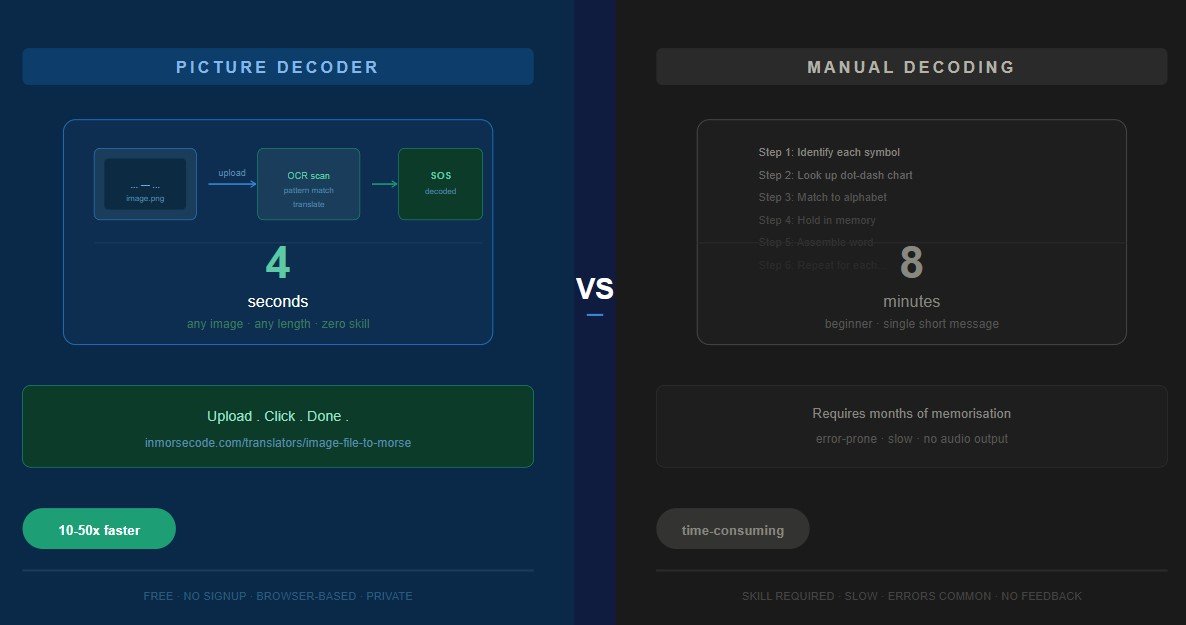
| ⚡ Quick Answer A morse code picture decoder is 10–50× faster than manual decoding for most real-world situations involving photographs, screenshots, scanned documents, and puzzle images. Manual decoding wins only in two very specific cases: when you are a trained operator practicing on purpose, or when you have a corrupted low-quality image the tool cannot read. For everything else, upload it and get your answer in under five seconds. |
The Real Question Behind This Comparison
Most people who search “morse code picture decoder vs manual” are not really asking which method is theoretically faster. They are asking something more practical: should I spend time learning to decode morse by hand, or should I just upload my image to a tool and get the answer instantly?
The honest answer is that it depends entirely on what you are trying to do. A trained ham radio operator copying 25 WPM live transmission does not reach for a camera. A puzzle solver who just found a Morse code clue in a screenshot absolutely should. An archivist working through a box of 1940s telegrams has different needs from a student decoding a single printed exercise.
This article cuts through the noise. We compare a morse code picture decoder specifically the image OCR-based tool at InMorseCode.com against manual decoding across every real scenario where people face this choice. For each one we give realistic time estimates, honest trade-offs, and a clear verdict so you know exactly which method to use and when.
Defining the Two Methods
What Is a Morse Code Picture Decoder?
A morse code picture decoder is a tool that accepts an image file a photograph, screenshot, scan, or any digital picture and automatically extracts and translates its content into or from Morse code. The InMorseCode image tool uses two modes:
• Text-in-Image mode: The tool reads ordinary text from the image using OCR (Optical Character Recognition) and converts that text to Morse code. You upload a photo of a printed document, the tool reads the words, and outputs the dots and dashes.
• Morse-in-Image mode: The tool detects dot-dash patterns already printed or drawn in the image and decodes them back to English text. You upload a picture showing ··· ——— ··· and the tool outputs SOS.
The entire process upload, OCR scan, pattern recognition, Morse translation, audio playback runs inside your browser. No server upload. No account. Typically completes in 2–5 seconds for a standard image.
What Is Manual Decoding?
Manual decoding means a human looks at the dots and dashes and translates them to letters and words using their own knowledge and memory. This requires:
• Knowing the Morse code alphabet (all 26 letters, 10 digits, common punctuation)
• Being able to identify dots versus dashes visually or by ear
• Knowing the spacing rules that separate characters from words
• Having enough working memory to hold each character while assembling the full word
Manual decoding speed varies enormously. A complete beginner counting dots and dashes on a printed chart takes 30–60 seconds per character. A trained amateur radio operator copying live audio transmission works at 20–35 words per minute roughly 2–3 characters per second. These two “manual” experiences are so different they almost cannot be compared on the same scale.
Head-to-Head Speed Comparison: 8 Real Scenarios
The following comparisons use realistic time estimates based on typical user skill levels and image conditions. “Beginner manual” assumes someone who knows the alphabet but is not a trained operator. “Expert manual” assumes an experienced ham radio operator or dedicated learner with 6+ months of practice.
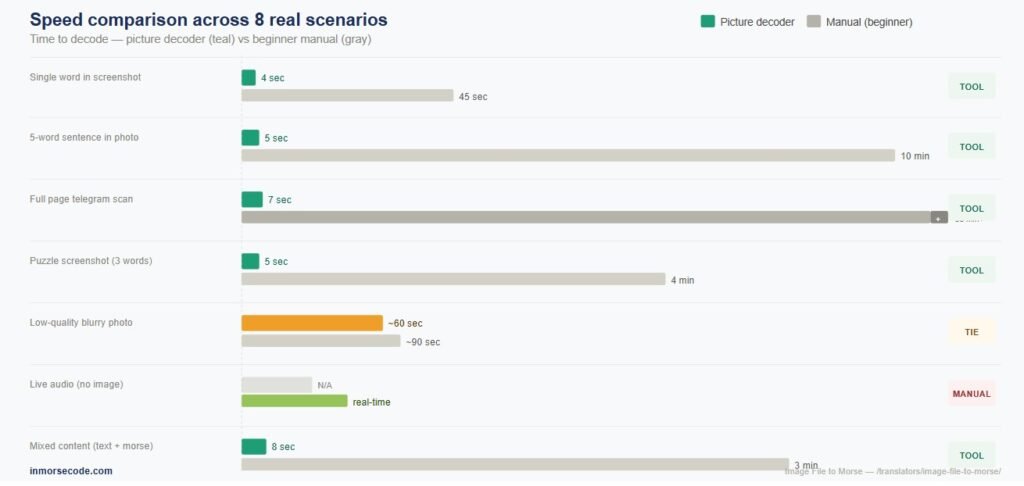
| Scenario | Tool Time | Manual Time | Faster Method |
| Single word in a clean screenshot (e.g. SOS) | Beginner: 45 sec Expert: 2 sec | ✔ Tool (beginner)≈ Tie (expert) | 3–4 sec |
| 5-word sentence in a printed document photo | Beginner: 8–12 min Expert: 25 sec | ✔ Tool wins both | 4–5 sec |
| Full page scanned historical telegram | Beginner: 1–2 hours Expert: 5–10 min | ✔ Tool; no contest | 5–7 sec |
| Puzzle screenshot with 3 Morse words | Beginner: 3–5 min Expert: 15 sec | ✔ Tool (beginner)≈ Tie (expert) | 4–5 sec |
| Low-quality blurry photo, poor contrast | Expert: same or faster | ≈ Tie (depends on skill) | 20–60 sec + edits |
| Live audio transmission (no image involved) | Expert: real-time copy | ✔ Manual; tool not applicable | N/A |
| Single letter identification from image | Beginner: 20–30 sec Expert: instant | ≈ Tie (expert instant) | 3–4 sec |
| Mixed content: English text + Morse patterns | Beginner: very slow Expert: 2–3 min | ✔ Tool wins both | 5–8 sec (two passes) |
| How to read this table: Green rows = the picture decoder wins clearly. Amber rows = it depends on the situation or the operator’s skill level. Red rows = manual wins or the tool doesn’t apply. In 5 of 8 real-world scenarios, the tool is faster for both beginners and experts. In 2 scenarios it’s a tie depending on conditions. Manual wins outright in exactly one case live audio, where there’s no image to decode. |
Scenario-by-Scenario Breakdown
Scenario 1: A Screenshot with a Short Morse Message
This is the most common situation people face. You are playing a game, solving a puzzle, or watching a video and spot a string of dots and dashes on screen. You take a screenshot. What now?
With the picture decoder: open InMorseCode.com, drop the screenshot into the image tool, select “Morse Code in Image” mode, click Read Text from Image. Result in 3–4 seconds. You hear the audio, read the English output, and you are done.
With manual decoding (beginner): study each symbol, look up dots and dashes in a reference chart, assemble the characters, write out the word. For a 3-letter word like SOS, this takes 30–45 seconds minimum for a beginner still learning the alphabet.
With manual decoding (expert): a trained operator glances at a screenshot and reads SOS in under 2 seconds. At this skill level it is essentially a tie with the tool except the tool requires no skill to learn and works on any message of any length at the same speed.
| Verdict: Tool wins for beginners and intermediate users. Tie with expert operators on very short messages. Tool wins on anything longer than 3 characters even for experts because human working memory overhead increases with length. |
Scenario 2: A Photograph of a Printed Morse Code Document
You have a physical printed page a Morse code exercise sheet, a practice chart, a historical reference card and you want to decode it. You photograph it with your phone.
This is where the tool’s advantage becomes dramatic. A 100-character document takes the tool 5–7 seconds regardless of length. The same document takes a beginner 15–20 minutes. Even an expert operator reading a printed Morse chart not listening to audio but visually scanning dot-dash symbols takes 3–5 minutes for 100 characters because visual reading of printed Morse is slower than audio copying.
The reason is cognitive: manual visual decoding of printed Morse requires the brain to perform two translations (symbol shape → dot/dash identity, then dot/dash sequence → letter), while the tool performs this as a single automated operation with no cognitive load on the user at all.
| Verdict:Tool wins decisively. The longer the document, the larger the advantage. A one-page telegram that takes an expert 5 minutes takes the tool 7 seconds. |
Scenario 3: A Full Page Scanned Historical Telegram
Archives and museums hold thousands of scanned Morse code documents WWI and WWII military dispatches, maritime logs, railroad communications. An archivist or researcher wants to extract and decode the content.
Manual decoding of a full scanned page: for someone who is not a professional Morse operator (which most researchers are not), this is a 1–2 hour task per page. Even with expert knowledge, printed telegram scans often have degraded ink, aged paper texture, and inconsistent spacing that makes visual decoding slow and error-prone.
The tool processes the same page in 5–7 seconds. The tool’s OCR engine handles faded text with the Enhance Text or Black and White preprocessing option. For genuinely damaged or very low-quality scans, some manual correction of the extracted text is needed but even then, correcting 5 errors in a machine-extracted text is far faster than manually decoding from scratch.
| Verdict: Tool wins completely. This is the scenario where the speed gap is largest potentially 500–1000× faster for a non-specialist researcher. The image tool is not just more convenient here; it makes tasks possible that would otherwise be impractical. |
Scenario 4: A Puzzle or Escape Room Clue Image
Puzzle designers, ARG (Alternate Reality Game) participants, and escape room players regularly encounter Morse code in image form a photograph of a clue, a screenshot from a game terminal, a printed card with dots and dashes. Decoding speed often matters because there is a timer, a competitive element, or a team waiting for the answer.
Tool approach: screenshot the clue, upload, select Morse Code in Image mode, click once. Answer in 4–5 seconds. You immediately share the decoded result with your team using the tool’s Share button.
Manual approach for a typical puzzle with 3–5 words of Morse: a beginner takes 3–5 minutes. An expert takes 15–30 seconds. The tool is 4–5× faster than the expert and 40–60× faster than the beginner in this scenario.
There is also an accuracy advantage. Under pressure, manual decoding produces errors B and D (both start with a dash) are famously confused, as are S and H (both are all-dots). The tool makes none of these errors on clean images.
| Verdict:Tool wins for speed and accuracy. The Share button adds a collaborative advantage manual decoding cannot match: share the link and the whole team sees the decoded result and hears the audio instantly. |
Scenario 5: A Low-Quality or Blurry Image
This is the scenario where the tool’s advantage narrows. A very dark, blurry, or low-contrast photograph a badly lit photo of a chart, a heavily compressed screenshot, a faded scan with coffee stains challenges the OCR engine.
The tool still tries and often succeeds with preprocessing: switching to Black and White mode, adjusting contrast, or cropping to the relevant area. These steps add 30–60 seconds to the workflow. An expert operator who is comfortable with printed Morse code may decode the same image in similar time if the dots and dashes are at least somewhat visible, even at low quality.
The key question is: can a human read something the OCR engine cannot? Yes, sometimes. A human can use context to fill in ambiguous characters (“that blurry symbol is probably an E because the word makes sense as SEND not SXND”). OCR cannot use context this way without explicit error correction.
| Verdict: Genuinely depends on the image quality and the operator’s skill. For low-quality images, try the tool first with different preprocessing options. If the confidence score drops below 70%, an expert manual decoder may match or beat it. But always try the tool first it is still often faster even at lower confidence because the Edit Text function lets you correct only the wrong characters rather than decode everything from scratch. |
Scenario 6: Live Audio Morse Code Transmission
This is the one scenario where the picture decoder is simply not the right tool because there is no picture. A ham radio operator receiving a CW (Continuous Wave) transmission in real time, someone listening to a Morse audio recording, or anyone decoding Morse by ear is working in a domain the image tool does not serve.
For live audio, you need either trained ears or the Audio to Morse decoder at InMorseCode.com, which accepts MP3 and WAV files. But in the specific case of real-time transmission with no recording, manual decoding by a trained operator is the only option.
It is worth noting that this is a genuinely different skill from image-based decoding. An operator trained for audio copying is not “manually decoding” in the sense of counting dots and dashes they are pattern-recognizing complete character sounds at speed, just as a fluent reader recognizes whole words rather than individual letters.
| Verdict: Manual wins by default the image tool does not apply. Use the Audio to Morse decoder for recorded audio files. For live transmission, trained manual copying is the only real-time option. |
Scenario 7: Learning and Deliberately Practising Morse
Here is a scenario most people overlook: sometimes the point is to decode manually. A student working through a Morse code exercise book, a ham radio candidate building copying skills, or a STEM teacher demonstrating encoding theory all of these situations want the human to do the work.
Using a picture decoder in a learning context defeats the purpose. If you are trying to internalize the letter patterns, the tool removes the exact cognitive effort that builds the skill. For intentional practice, the correct workflow is:
1. Upload the printed exercise to the tool to get the Morse code audio.
2. Listen to the audio playback and try to copy it yourself.
3. Use the tool’s decoded text to check your answers after you have attempted manual decoding.
This is actually how the image tool and manual decoding work together most effectively: the tool generates the practice audio from printed materials, and the student manually copies it. The tool handles the tedious image-to-audio conversion so the learner can focus on the actual skill.
| Verdict: Neither wins use both together. The tool converts your printed practice materials into audio; manual decoding is the skill you are building. They serve different functions in the same workflow. |
Accuracy Comparison: Tool vs Manual
Speed without accuracy is useless. Here is how the error rates compare across the same scenarios:
| Scenario | Tool Accuracy | Beginner Manual Accuracy | Expert Manual Accuracy |
| Clean screenshot, standard font | 95–100% | 70–80% (errors on similar chars) | 98–100% |
| Printed document, good lighting | 90–98% | 60–75% | 95–99% |
| Historical telegram scan | 75–90% | 50–70% | 85–95% |
| Low-quality blurry photo | 40–70% | 40–60% | 60–80% |
| Handwritten Morse code | 60–80% | 65–85% | 85–95% |
| Puzzle image (high contrast) | 95–100% | 75–85% | 95–100% |
Two patterns stand out in this table. First, the tool consistently matches or beats beginner and intermediate manual accuracy in every scenario. Second, expert manual accuracy is genuinely competitive with the tool on clean images but only experts achieve this, and becoming an expert takes months of dedicated practice. The tool delivers expert-level accuracy to anyone instantly, with zero training required.
The tool also has a transparent accuracy indicator: the Confidence score shown after processing tells you exactly how reliable the extraction was. Manual decoders have no equivalent signal a beginner often does not know when they have made an error. The tool always tells you.
When to Use the Picture Decoder vs When to Decode Manually
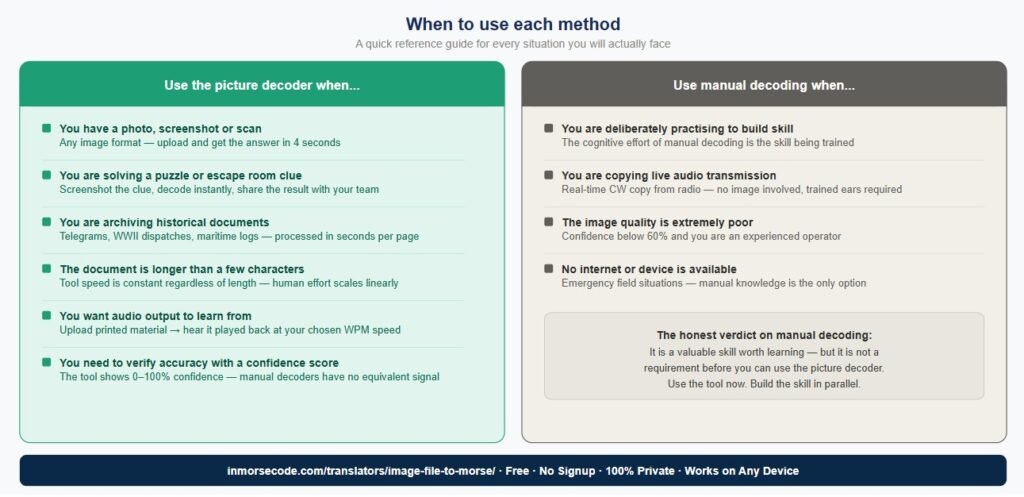
Use the Morse Code Picture Decoder When:
• You need a fast answer from a photograph, screenshot, or scan. Upload, click once, done in under 5 seconds. No skill required.
• You are working with a long document. Anything longer than a few characters is substantially faster with the tool. A full telegram page takes the tool 7 seconds and a human 5+ minutes.
• You found Morse code in a game, puzzle, or film. Screenshot it and decode instantly. Use the Share button to share the result with your team.
• You are digitising or archiving historical Morse documents. The tool handles scans with the Enhance Text preprocessing option. Volume processing that would take days manually takes hours with the tool.
• You want to verify a manual decode. If you have decoded something manually and are not sure it is correct, upload the image to the tool and compare results. The tool is a reliable second opinion.
• Accuracy matters and you cannot afford errors. The tool has a Confidence score so you know immediately if the result is reliable. Manual decoding has no such indicator for beginners.
Use Manual Decoding When:
• You are deliberately practising and building skill. Use manual decoding as the exercise itself. The point is the cognitive effort, not just getting the answer.
• You are copying live audio transmission. Real-time CW copy from a radio requires trained ears. No image tool applies here. Use the Audio to Morse decoder for recorded files.
• The image quality is so poor the tool cannot process it reliably. If the Confidence score is below 60–65% and you are an experienced operator, manual decoding of a simple short message may be faster than image preprocessing attempts.
• You have no internet access or device. In emergency field situations, manual knowledge is the only option. This is why learning Morse code manually still has value even in the age of picture decoders.
The Best Approach: Using Both Methods Together
The most effective Morse practitioners do not choose between the two methods. They use each one where it naturally fits and combine them where the workflow benefits from both.
The Optimal Learning Workflow
If you want to actually learn Morse code while still being productive, this workflow maximises both:
- Find or create printed Morse practice material. A printed exercise sheet, a Morse alphabet chart, a set of practice sentences.
- Photograph or screenshot the material and upload it to the image tool. Get the audio output.
- Play the audio at your training speed (use the WPM slider to set 10–15 WPM for beginners) and try to copy the message manually on paper.
- Compare your manual copy against the tool’s decoded text. Identify exactly which characters you missed and why.
- Repeat the same material using the Repeat button until your manual copy matches the tool’s output.
This approach uses the picture decoder’s strength converting printed material to playable audio instantly while keeping the manual decoding effort that actually builds skill. The tool does the setup; the learner does the work.
The Optimal Research / Archive Workflow
For historians, researchers, and anyone working with Morse code documents at volume:
- Batch photograph or scan all documents. Aim for good lighting, flat documents, and PNG format for best OCR accuracy.
- Upload each image to the tool and run OCR extraction. Use Enhance Text preprocessing for older scans.
- Note the Confidence score for each document. Below 80%, flag for manual review of the specific uncertain characters.
- Use the Edit Text function to correct any OCR errors before saving. Correcting 3–5 errors is far faster than manually decoding the whole document.
- Use the Download Results function to save extracted text for database entry, transcription records, or further analysis.
Full Feature and Speed Comparison Summary
| Factor | Morse Code Picture Decoder | Manual Decoding (Beginner) | Manual Decoding (Expert) |
| Speed short message | 3–5 seconds | 30–60 seconds | 2–5 seconds |
| Speed full page document | 5–7 seconds | 1–2 hours | 5–10 minutes |
| Accuracy on clean images | 95–100% | 65–80% | 98–100% |
| Accuracy on poor images | 40–70% | 40–60% | 60–80% |
| Training required | None | Months of study | 6– 12+ months |
| Works on any length | Yes; same time | No; linear effort | Yes; but slower |
| Audio output included | Yes; built in player | No | Only with separate tool |
| Shareable result | Yes; one-click share link | No | No |
| Mobile friendly | Yes; camera roll upload | Yes | Yes |
| Works offline | No; requires browser load | Yes | Yes |
| Works on live audio | No; image only | No (audio is different skill) | Yes; real-time copy |
| Error feedback | Yes; Confidence % shown | No indicator | Internal only |
Frequently Asked Questions
Is a morse code picture decoder more accurate than a human?
On clean, high-contrast images, the tool matches expert accuracy (95–100%) and significantly outperforms beginner and intermediate manual decoders. On low-quality or blurry images, an experienced operator may out-decode the tool because humans can use context and prior knowledge to fill in ambiguous characters. For most images people actually have in real situations, the tool is more accurate than everyone except trained operators.
Can I decode morse code from a picture on my phone?
Yes. Open InMorseCode.com in any mobile browser, tap Browse Images, select your photo from the camera roll, choose the right processing mode (English Text or Morse Code in Image), and tap Read Text from Image. The tool works fully on mobile. On supported Android and iOS devices, the Vibrate output mode also activates haptic feedback so you feel the Morse rhythm through your phone. You can also photograph a physical document and upload it directly without any transfer step.
Does using a picture decoder mean I don’t need to learn Morse manually?
For most use cases decoding puzzles, processing documents, archiving historical material, verifying messages no. The tool handles all of these faster and more accurately than a beginner learning manually. However, there are situations where manual knowledge is irreplaceable: real-time audio copy on a radio, emergency signaling without a device, and the competitive satisfaction of CW operating. If any of those matter to you, learning manually is still worthwhile. Use the tool to cover your immediate decoding needs while you build the manual skill in parallel.
How does the morse code picture decoder handle different image formats?
The tool accepts PNG, JPG, JPEG, GIF, BMP, and WEBP files up to 5 MB. PNG and BMP produce the highest OCR accuracy because they are lossless no compression artifacts blur the character edges. JPG and WEBP are fully supported and work well for most camera photos. For screenshots, always save as PNG if you have the option. The tool also offers four preprocessing modes Auto, Enhance Text, Grayscale, and Black and White to handle images that are not ideally clear straight from the source.
What’s the difference between a morse code picture decoder and a morse code audio decoder?
A picture decoder reads a visual image any photograph, screenshot, or scan and extracts text from it using OCR, or detects dot-dash patterns in the image and translates them to English. An audio decoder listens to a sound file an MP3 or WAV recording of actual Morse code tones and decodes the timing pattern to text. Both are available on InMorseCode.com. The image tool covers any situation where you have a visual representation of Morse code; the audio tool covers any situation where you have a recording of the actual signal.
Is there a situation where manual decoding beats the tool even on clean images?
Yes, one: a single common letter or prosing that an expert operator recognizes instantly. An experienced ham radio operator who sees a clear “···” recognizes it as S in under half a second slightly faster than the 3–4 second tool workflow for a single character. This advantage disappears at 2+ characters because tool speed is constant regardless of message length while mental decoding effort increases with each additional character.
Can the tool decode morse code from a picture that is partially obscured?
Partially obscured images are one of the trickier cases. The OCR engine handles mild obscuration a fold in a document, a partial shadow, a torn corner reasonably well, particularly with the Enhance Text preprocessing option. The Confidence score will be lower for partially obscured images, and the tool’s Edit Text function lets you fill in any gaps the engine could not read. For severe obscuration where a significant portion of the dots or dashes is missing, manual reconstruction with context clues may be needed for the affected portion.
The Verdict: Use the Tool First, Learn Manually in Parallel
The picture decoder wins in speed, wins in accessibility, wins in document volume, and matches expert accuracy on clean images. For the vast majority of real situations where someone encounters Morse code in an image and needs to know what it says, uploading the image to a decoder is the right answer.
Manual decoding is not obsolete it is a genuinely different skill with its own use cases: real-time audio copy, emergency knowledge, the satisfaction of CW radio operating. But “should I learn to decode morse manually before I can use my picture decoder?” The answer is no. The tool works now, for anyone, with zero training.
The best approach for most people: use the picture decoder for immediate tasks, and learn manual decoding as a skill you build over time using the tool’s audio output as your practice material. You do not have to choose between them. They serve each other.
| Try the Image to Morse Decoder at InMorseCode Upload any image containing English text or Morse code patterns. PNG, JPG, JPEG, GIF, BMP, and WEBP supported up to 5 MB. Free, no signup, no server upload, works on any device. Results in 3–5 seconds. |