
Upload any image containing English text or Morse code patterns and our free online tool instantly extracts the content using advanced OCR (Optical Character Recognition) technology and converts it to Morse code or decodes existing dot-and-dash patterns into readable text. Supports PNG, JPG, JPEG, GIF, BMP, and WEBP files. No account, no download, no data stored. Everything runs securely inside your browser.
An image to Morse code converter is an online tool that uses Optical Character Recognition (OCR) a form of artificial intelligence that reads printed or typed text inside photographs, scans, and screenshots and automatically translates that extracted text into International Morse Code. The result is the familiar sequence of dots and dashes (dits and dahs) that represent each letter and number.
Our tool on InMorseCode.com goes one step further: it also works in reverse. If your image contains Morse code patterns (rows of dots and dashes printed or drawn on paper, on a screen, or in a document), you can switch to “Morse Code in Image” mode and the system will attempt to detect and decode those patterns back into plain English text.
This makes the tool genuinely bidirectional, you can translate text from image to Morse code, or decode Morse code from image to text, all from a single upload interface. Every conversion is displayed in the live Morse Code Player, where you can listen to the decoded signal as audio, watch it flash as light, feel it vibrate on mobile, and share or repeat it instantly.
Why it matters: Before tools like this existed, decoding text from a scanned telegram, a printed Morse reference chart, or a handwritten practice sheet required manually retyping every character. This tool eliminates that friction entirely, one upload replaces hours of manual work.
A plain-language explanation of every button, control, and function shown in the tool so you know exactly what each feature does and when to use it.
At the top of the tool you will see a large upload panel with a dashed border and an image icon labeled “Drop your image here.” You have two ways to load your image: either drag your image file directly from your desktop and drop it into this box, or click the blue “Browse Images” button to open your device’s file picker and choose a file. The tool accepts PNG, JPG, JPEG, GIF, BMP, and WEBP formats up to 5 MB in size. As soon as your image loads, a preview thumbnail appears confirming the file is ready to process.
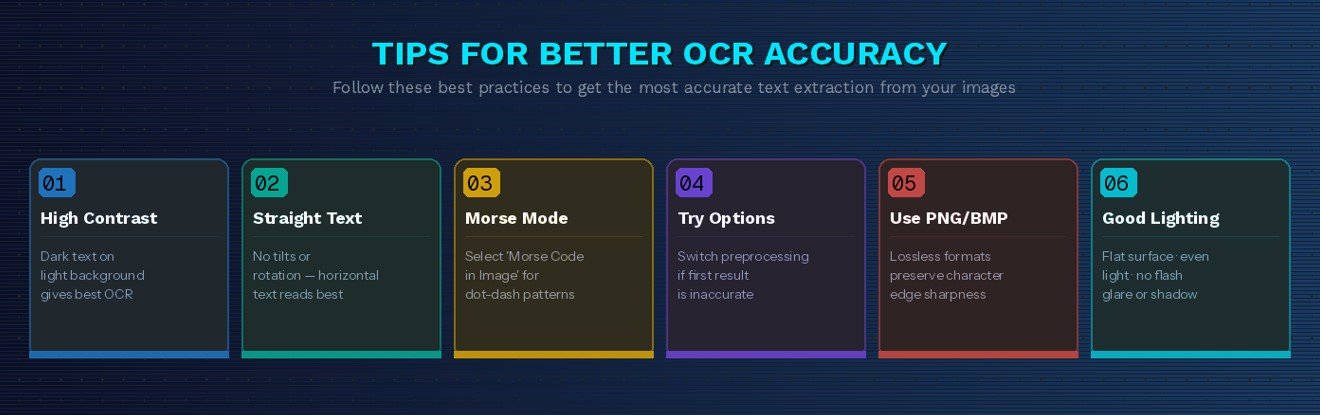
Just below the upload box, there is a blue panel labeled “Tips for better OCR results.” This is your quick-reference guide for getting the most accurate text extraction. The tips remind you to: use clear, high-contrast images; ensure text is straight and not rotated; select the “Morse Code in Image” option if your photo contains dot-and-dash patterns rather than English letters; and try different image processing options if results are not what you expected. Reading these tips before clicking the extract button will significantly improve your output quality, especially for older or lower-resolution images.
This is one of the most important options in the tool. By default, the OCR engine assumes your image contains English text, letters, words, and sentences which it will extract and convert to Morse code. However, if your image contains actual Morse code patterns (printed dots and dashes, drawn signal sequences, or photographed telegraph charts), you need to switch to the “Morse Code in Image” processing mode. This tells the engine to look for dot-dash patterns rather than alphabetic characters, and decode them back to readable English text. Always select this option when working with historical Morse documents, amateur radio reference cards, or puzzle images that show dots and dashes.
Once your image is uploaded and you have selected the correct processing mode, click the “Read Text from Image” button. This triggers the OCR engine, which scans every pixel of your image to identify and extract all recognizable text characters. The process typically completes within a few seconds. The extracted text is then immediately passed through the Morse code translation engine, and the resulting Morse code output (dots and dashes) appears in the Morse Code Player section below the tool. This single button does all the heavy lifting, image reading, text recognition, and Morse translation happen automatically in sequence.
After the image is processed and Morse code is generated, the green “Play Morse” button in the Morse Code Player section becomes active. Clicking it plays the decoded Morse code as audio, you will hear the classic sequence of short beeps (dots) and long beeps (dashes) that represent each character extracted from your image. This is especially valuable for learners who want to train their ear alongside visual decoding, and for radio operators who want to hear how a specific word or phrase sounds in CW (Continuous Wave) transmission format.
The orange “Pause” button stops audio playback mid-sequence without losing your position. Click it when you need to check a specific character, cross-reference the Morse alphabet, write down a section of the decoded message, or simply take a break. Press Play again and playback resumes from exactly where it stopped, no need to start the entire message from the beginning. Pause is particularly useful when processing long text extracted from large images or scanned documents.
The red “Stop” button halts playback entirely and resets the player back to the very start of the decoded Morse sequence. Use Stop when you are finished with the current image output and want to start fresh, either to upload a new image, switch processing modes, or replay the entire message from the first character. After pressing Stop, the next press of Play will begin at the very first dot or dash of the decoded output.
The white “Repeat” button activates loop mode. When enabled, the decoded Morse audio plays continuously, cycling back to the beginning automatically after each complete playback. This feature is ideal for Morse code learning and memorization, continuous listening to the same message helps the brain internalize patterns for letters, numbers, and common words. Repetition is the most effective method used by amateur radio operators when training to pass their Morse code proficiency exams. Simply press Repeat, lean back, and let the rhythm sink in.
The teal “Sound” button toggles the audible audio output on and off. When Sound is active, you hear the Morse code beeps through your device’s speaker. When Sound is turned off, the player can still run the timing sequence silently useful if you want to use the Light mode (visual flashes) or Vibrate mode (haptic pulses) without any audio, for example when you are in a quiet location or want a silent practice session. Sound mode works together with or independently from the other output modes.
The “Light” button activates a visual Morse code output mode. When enabled, your screen flashes in the exact timing pattern of the decoded Morse signal, short flashes for dots and longer flashes for dashes. This mimics real-world light-based Morse signaling, such as naval signal lamps, aircraft identification lights, and lighthouse codes. It is also an essential accessibility feature, allowing users who are deaf or hard of hearing to experience Morse code in a fully visual way. Light mode can run simultaneously alongside Sound mode for a combined audio-visual experience.
The “Vibrate” button activates haptic feedback on supported smartphones and tablets. Your device vibrates in the precise rhythm of the Morse code, brief pulses for dots and longer pulses for dashes. Vibrate mode is a tactile decoding experience with historical roots: early Morse operators often learned the code through touch, feeling vibrations through a physical sounder key. On mobile devices, this creates an immersive, hands-free practice experience that you can literally feel. It is especially useful for learners with visual or hearing impairments.
The blue “Share” button lets you instantly share the translated Morse code output with anyone via a direct link. No account is required. This is perfect for teachers distributing decoded Morse exercises to students, ham radio operators sharing CW message translations, puzzle creators revealing escape room solutions, or anyone who wants to send a Morse-encoded message to a friend. The share function works directly from the browser with a single tap or click.
In the Player Settings section, the Speed slider is labeled in Words Per Minute (WPM) and controls how fast the Morse audio plays back. The default setting is 20 WPM, a comfortable middle-ground speed used in many amateur radio training programs. Slide left to slow down to 5–10 WPM for beginner listening practice, or slide right to increase speed toward 30–50+ WPM for advanced and professional-level listening challenges. Adjusting WPM does not change the decoded text, only the speed at which the audio is played.
The Pitch slider, measured in Hertz (Hz), controls the tone frequency of the Morse audio beeps. The default is 600 Hz, which falls within the standard listening range of 400–800 Hz used in amateur radio CW communication. A higher Hz value produces a higher-pitched tone; a lower value produces a deeper, more mellow beep. Different operators and training programs prefer different pitch values, 550 Hz and 700 Hz are also very common. Adjust Pitch to find the frequency that is most comfortable and clear for your ears.
The Volume slider controls the loudness of the Morse code audio playback, defaulting to 80%. Drag it up for louder beeps or down for quieter output. This operates independently from your device’s system volume, giving you precise control without changing your overall device settings. Pair the Volume slider with the Pitch and Speed sliders to create your ideal Morse practice environment whether that is a loud, fast challenge for experienced operators, or a quiet, slow session for a beginner just starting to learn the alphabet.
Pro Tip: For the most accurate OCR results from photos of physical documents, use high-contrast images (dark text on white or light background), ensure text is horizontal and not tilted, and photograph in good lighting. For images containing printed Morse code dot-dash patterns, always select the “Morse Code in Image” option before clicking Read Text from Image.
Lossless, best for screenshots and digital graphics
Photos, scanned documents, camera images
Same as JPG, full support for all JPEG variants
Static GIF images, text charts, diagrams, reference cards
Windows bitmap, uncompressed, highest raw quality
Modern web format, smaller files, excellent sharpness
| Specification | Value |
|---|---|
| Maximum file size | 5 MB per image |
| Recommended resolution | 150 DPI or higher for printed documents |
| Best image type | High-contrast, horizontal text on white/light background |
| Processing location | Entirely in your browser, no server upload |
| Morse code standard | ITU-R M.1677-1 (International Morse Code) |
| Audio frequency range | 400–800 Hz (default: 600 Hz) |
| Playback speed range | 5–60 WPM (default: 20 WPM) |
Here is exactly what happens from the moment you drop your image into the tool to the moment you hear the first beep:

The entire pipeline runs locally inside your browser using the Web Audio API and client-side image processing. Your image never leaves your device, no file is ever sent to an external server, making the tool completely private and secure.
The tool uses two distinct recognition modes. In Text-in-Image mode, it applies standard OCR: the engine treats your image as a document, identifies letter and number shapes, and produces a text string that is then passed to the Morse translator. In Morse Code in Image mode, it uses a specialized segmentation algorithm to detect dot and dash shapes by size ratio, short marks are classified as dots (dits) and longer marks as dashes (dahs) — and maps them against the full International Morse Code alphabet to produce a decoded text output.
Machine learning character recognition reads printed text, typed text, and handwritten notes from any uploaded image with high accuracy across diverse fonts and image conditions.
PNG, JPG, JPEG, GIF, BMP, and WEBP, all major image formats up to 5 MB. Compatible with camera photos, screenshots, scans, and digital graphics.
Experience decoded Morse as audio beeps (Sound), screen flashes (Light), and haptic vibrations (Vibrate) simultaneously or independently.
Convert image text → Morse code, or decode Morse patterns in images → plain English. Full two-way translation from a single upload interface.
Play, Pause, Stop, Repeat with adjustable Speed (WPM), Pitch (Hz), and Volume sliders. Fine-tune every aspect of the playback experience.
All Morse translations follow the International Morse Code standard, the same specification used in amateur radio, aviation, and maritime communications worldwide.
All image processing and OCR happens locally in your browser. Your images are never uploaded to any server. Zero data storage, zero risk.
One-click sharing of decoded Morse output via link. No login required. Share with students, radio partners, or puzzle participants instantly.
Works on desktop, tablet, and smartphone. Vibrate mode activates haptic feedback on supported mobile devices for a tactile Morse experience.
The tool prominently displays these best practices directly in the interface. Here is a deeper explanation of each tip and why it matters:
Morse code was developed in the early 1830s and 1840s by Samuel Morse and Alfred Vail to transmit messages over electrical telegraph lines using a system of short and long electrical pulses. Each letter of the alphabet, each digit from 0 to 9, and a range of punctuation marks are represented by a unique sequence of dots (short signals, also called “dits”) and dashes (long signals, also called “dahs”).
The system that most people know today is International Morse Code, standardized by the International Telecommunication Union as ITU-R Recommendation M.1677-1. This replaced the earlier American Morse Code, which used a slightly different set of patterns and additional characters. InMorseCode.com implements the ITU-R M.1677-1 standard exclusively.
The dots and dashes are defined by precise timing ratios: a dot lasts 1 time unit, a dash lasts 3 time units, the gap between signals within a letter is 1 unit, the gap between letters is 3 units, and the gap between words is 7 units. At 20 WPM (the default speed on this tool), each time unit is approximately 60 milliseconds.
Morse code remains in active use today in amateur radio (ham radio) communications as CW (Continuous Wave) transmission, in aviation NDB beacon identification, in maritime emergency signaling, and as a tool for accessibility communication for individuals with motor disabilities. The SOS signal (··· — — — ···) is recognized internationally as a universal distress call in any medium, sound, light, or radio wave.
This image-to-Morse tool bridges the physical and digital world: any piece of paper, any printed sign, any photographed document can now be instantly converted to the universal language of dots and dashes and played back as the authentic sound of Morse code.

Unsure what a particular sequence means? Our Morse code translator comes with a comprehensive built-in reference. When your audio is analyzed, the results aren’t just dots and dashes they’re translated into letters, numbers, and punctuation.
Convert printed CW reference charts, contest logs, and QSL card text to Morse audio for training and contest preparation
Extract text from textbook exercises, printed Morse alphabet charts, and study sheets instantly hear the result as audio

Convert printed lesson materials, classroom worksheets, and test papers into Morse audio. Distribute via Share link
Digitize and decode vintage telegrams, WWII military communications, and rare historical Morse documents
Create image-based Morse puzzles. Players photograph a clue, upload it, and decode the hidden message instantly
Convert training material, drill documents, and emergency communication protocols to Morse audio for realistic practice
Identify NDB beacon identifiers and maritime navigation signals from printed charts and reference materials
Test OCR-to-Morse pipelines. Evaluate image quality requirements. Reference ITU encoding against tool output
Beyond these primary audiences, the tool is also widely used by cryptography enthusiasts who embed Morse messages into images as steganographic puzzles, jewelry and tattoo designers who convert photo-captured custom text into Morse patterns, museum and cultural preservation teams digitizing maritime and wartime communication archives, and STEM educators who use Morse code as an engaging entry point into signal processing and encoding theory.
| Feature | InMorseCode.com | Typical Alternatives |
|---|---|---|
| Free to use | ✔ Always free | Often freemium with daily limits |
| No signup required | ✔ Zero registration | Many require account creation |
| Image file support | ✔ PNG JPG JPEG GIF BMP WEBP | Usually PNG and JPEG only |
| Morse in image mode | ✔ Dedicated dot-dash recognition | Rare usually text OCR only |
| Audio playback | ✔ Sound + Light + Vibrate | Audio only in most tools |
| WPM + Pitch + Volume control | ✔ Full player settings | Often fixed speed only |
| Data privacy | ✔ 100% browser-based, no upload | Files often sent to server |
| Mobile vibrate mode | ✔ Haptic feedback supported | ✗ Rarely available |
| Instant share link | ✔ One-click sharing | Usually requires download first |
| ITU-R M.1677-1 standard | ✔ Fully compliant | Most tools comply |
Find answers to common questions about Morse code and how to use our Image to Morse Code effectively
Go to InMorseCode.com’s Image to Morse Code tool, upload your PNG, JPG, GIF, BMP, or WEBP image using the Browse Images button or by dragging it into the drop zone, then click “Read Text from Image.” The OCR engine extracts the text and automatically converts it to Morse code, which plays in the Morse Code Player below. Completely free, no account needed.
Yes. If your image contains printed or drawn Morse code patterns (actual dots and dashes), select the “Morse Code in Image” processing option before clicking Read Text from Image. This activates a dedicated pattern recognition mode that identifies dot-and-dash shapes and decodes them to English text, rather than trying to read them as alphabetic characters.
The tool supports PNG, JPG, JPEG, GIF, BMP, and WEBP image files, up to a maximum size of 5 MB. PNG and BMP formats generally produce the best OCR accuracy because they are lossless. For photographs from a camera or phone, JPG and WEBP are fully supported.
No. All image processing, OCR recognition, and Morse code translation happen entirely within your browser using client-side technology. Your image is never sent to any external server. Once you close or refresh the page, the image and all processed data are completely cleared from memory.
Yes, the OCR engine can read clearly printed handwritten text with moderate accuracy. Block capital letters in dark ink on a white background work best. Cursive or stylized handwriting significantly reduces recognition accuracy. For handwritten Morse code dots and dashes, use the “Morse Code in Image” mode and ensure the dots and dashes are clearly drawn and evenly spaced.
This option switches the tool from standard text OCR mode to Morse pattern recognition mode. Use it whenever your image contains actual dot-and-dash sequences rather than English text for example, printed Morse code charts, historical telegraph documents, amateur radio reference cards, puzzle images, or any physical material that shows the · and — symbols of Morse code.
WPM stands for Words Per Minute, the standard measurement of Morse code transmission speed. One “word” in Morse is conventionally counted as five characters including spaces. At the default 20 WPM, an operator sends or receives 20 such words every minute. Beginners typically start at 5–10 WPM. Experienced amateur radio CW operators commonly operate at 25–35 WPM or faster. Use the Speed slider to set whatever WPM is appropriate for your skill level.
Yes, and this is one of the most popular use cases for the tool. If you have a scanned photograph or digital image of a historical telegram, military Morse code document, or wartime communication record, upload it to the tool. For images that show printed Morse dot-and-dash patterns, enable “Morse Code in Image” mode. For images showing typed or handwritten English text that you want to convert to Morse, use the standard mode. The OCR engine performs well on historical documents with clear, high-contrast printing.
Yes, the tool is fully responsive and works on all modern smartphones and tablets. You can photograph a physical document with your phone’s camera, then open InMorseCode.com in your mobile browser, upload the photo directly from your camera roll, and decode it in seconds. On supported Android and iOS devices, the Vibrate output mode also activates haptic feedback so you can feel the Morse code rhythm through your phone.
OCR stands for Optical Character Recognition, a technology that uses machine learning and pattern recognition to identify and extract printed or handwritten text characters from images. In this tool, the OCR engine scans each region of your uploaded image, identifies shapes that match known character patterns (letters, numbers, punctuation), and assembles them into a text string. That string is then passed to the Morse code translator, which maps each character to its International Morse Code dot-dash sequence and generates the audio playback output.
Join thousands of students and hobbyists using our Image to Morse Code Converter to learn and decode.